

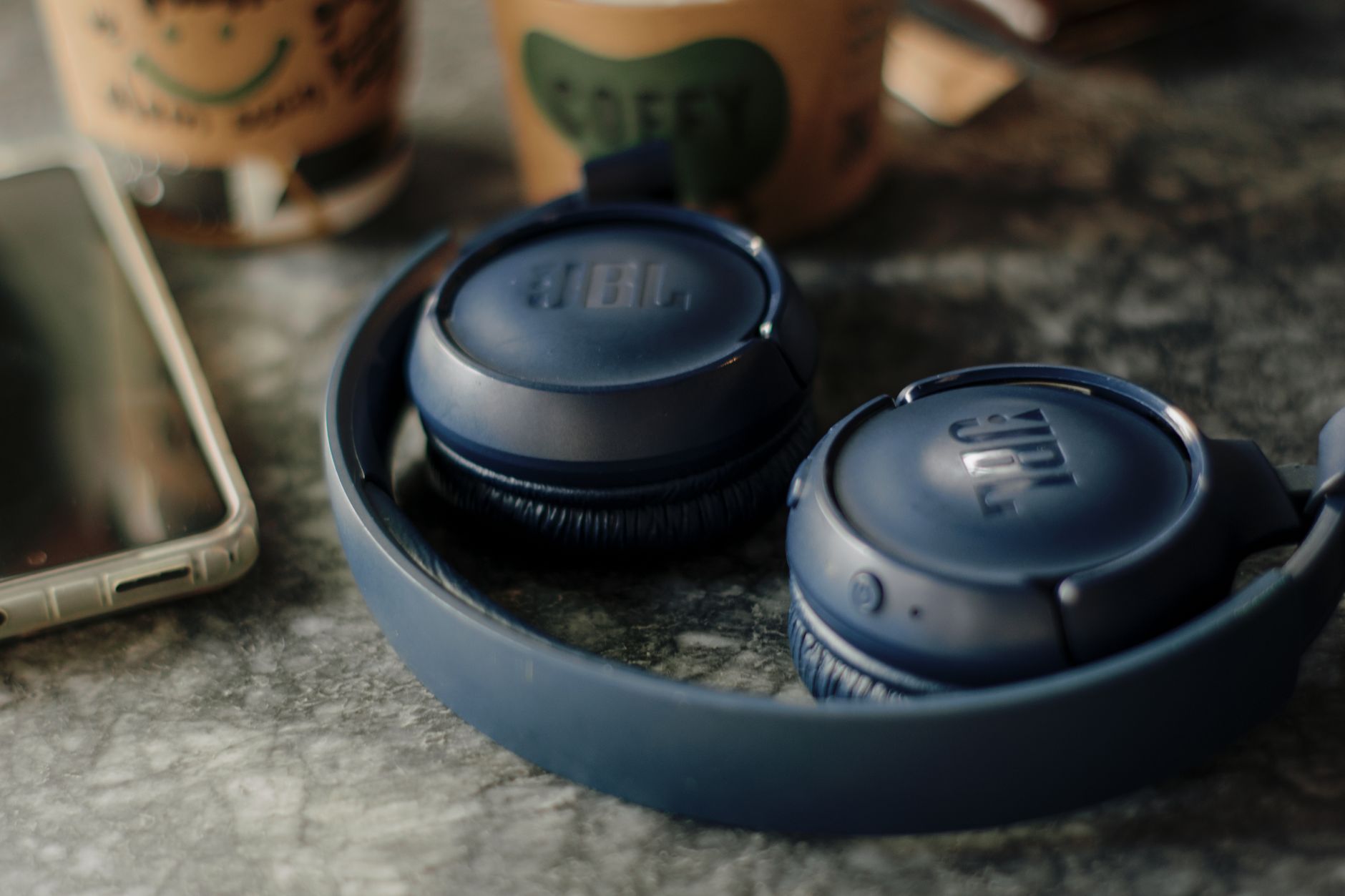
We have all been there. You are right at the emotional peak of a favorite track, or worse, in the middle of explaining something critical to your boss on a video call, and suddenly the audio cuts out. A second later, you hear that mocking, digital chime in your ears: Disconnected. You stare at your phone or laptop in frustration, wondering why a technology first developed in the late 1990s still feels so incredibly fragile in the 2020s.
To understand why your Bluetooth headphones keep dropping their connection, we have to look past the marketing gloss. Wireless audio is not magic; it is a highly complex, real-time negotiation between two tiny computers strapped to your head and tucked in your pocket. Because it operates in a crowded, invisible space, even minor disruptions can cause the whole system to collapse. Let's unpack exactly why this happens and look at the engineering-level solutions to fix it.
The Invisible Traffic Jam: Radio Interference
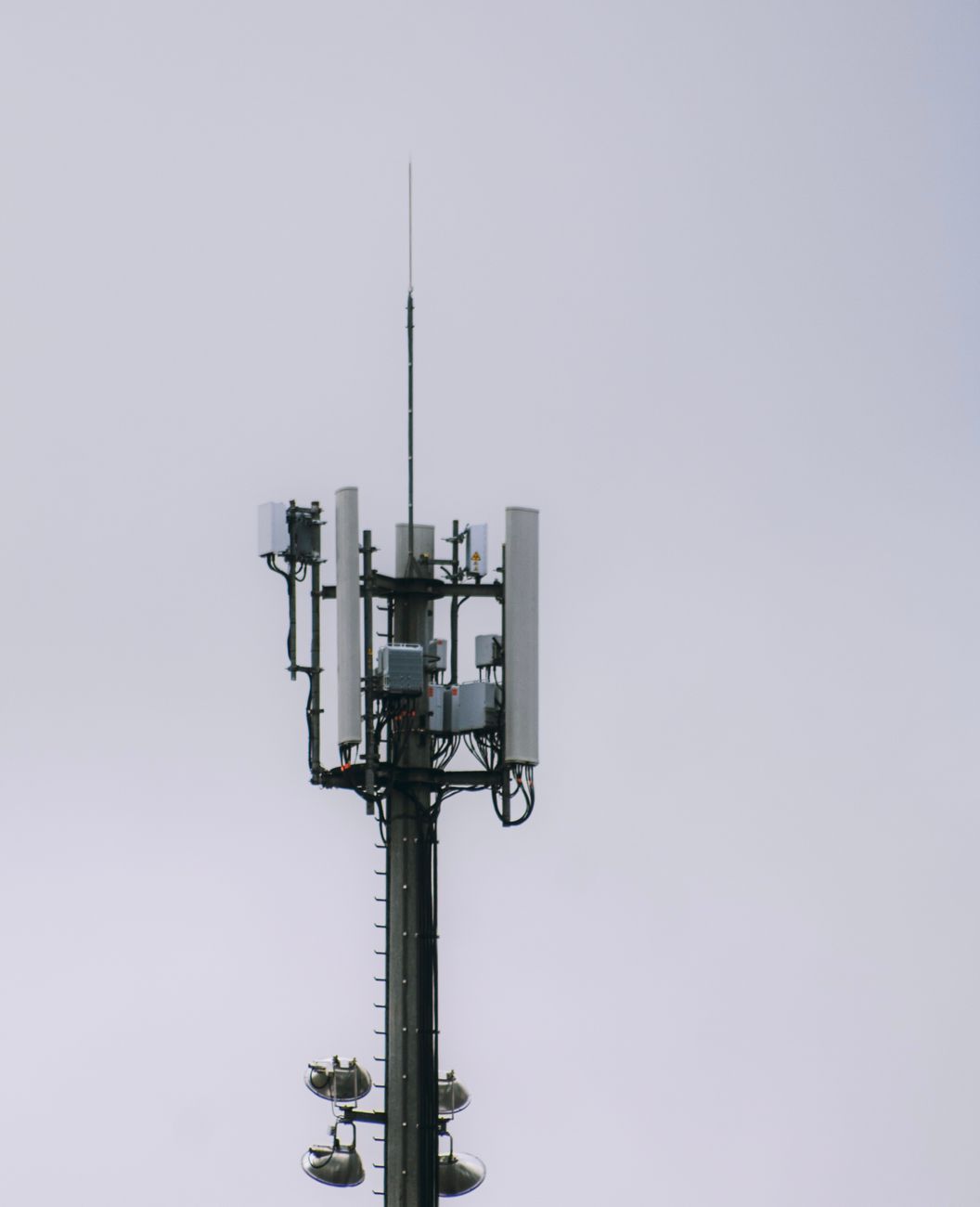
Think of the air around you as a highway. When Bluetooth was designed, it was assigned to a patch of the wireless spectrum known as the 2.4 GHz ISM (Industrial, Scientific, and Medical) band. The problem is, this highway has no toll booths, and absolutely everyone is allowed to drive on it. Your home Wi-Fi, your baby monitor, your smart light bulbs, your microwave oven, and even your neighbor's wireless security cameras are all screaming data across this exact same frequency.
To cope with this crowd, Bluetooth uses a clever trick called Adaptive Frequency Hopping (AFH). Imagine you are trying to walk through a crowded room while having a conversation. If someone steps in front of you, you quickly step to the side and keep talking. Bluetooth does this 1,600 times per second, hopping across 79 different channels to find a quiet spot to transmit its data.
However, if the room is so packed that there is nowhere left to step, the conversation stops. When your home Wi-Fi router is pumping high-definition video streams over the 2.4 GHz band, it creates a wall of white noise. Your headphones try to hop to a clean channel, find none, drop too many packets of data, and eventually give up, severed from the source.
How to clear the air:
- Switch your Wi-Fi to 5 GHz or 6 GHz: If your router supports dual-band wireless, move your phones, laptops, and TVs to the 5 GHz band. This leaves the 2.4 GHz band relatively clear for your Bluetooth devices to breathe.
- Identify the physical barriers: The human body is mostly water, and water is incredibly good at absorbing 2.4 GHz radio signals. If your phone is in your back pocket and your headphones' primary receiver is in your right earbud, your own hips can block the signal. Try moving your playback device to a front pocket or onto your desk.
- Step away from active appliances: Microwaves are notorious Bluetooth killers. When they age, their shielding degrades, leaking 2.4 GHz radiation that completely drowns out the tiny, milliwatt-level transmitters inside your earbuds.
Power Management and Aggressive Sleep Cycles

Modern operating systems are obsessed with saving battery life, and for good reason. No one wants a phone that dies by noon. However, this obsession often leads to overzealous power-saving protocols that treat your Bluetooth connection like an unnecessary luxury.
Both Android and iOS, as well as Windows and macOS, feature aggressive background resource managers. When your phone's screen goes black, the operating system starts putting processes to sleep. If the OS decides that the Bluetooth daemon (the background service that manages wireless connections) is consuming too much power, it might throttle its CPU allocation or put the hardware controller into a low-power "sniff" mode.
In this low-power state, the interval between data packets stretches out. If your headphones do not receive a packet within a specific timeframe (known as the supervision timeout), they assume the host device has walked out of range and shut down the connection to save their own battery.
How to stop the forced naps:
- Disable battery optimization for Bluetooth: On Android, go to your Apps menu, enable system apps, find "Bluetooth" or "Bluetooth MIDI Service," and change its battery setting from "Optimized" to "Unrestricted."
- Turn off Windows USB selective suspend: If you are using a USB Bluetooth dongle on a PC, Windows might turn off the USB port to save power. Go to your Advanced Power Settings and disable "USB selective suspend."
- Check your headphones' companion app: Many premium headphones have an auto-power-off timer hidden in their settings. If this sensor miscalculates your movement, it might think you have taken the headphones off and shut them down while you are wearing them.
Codec Mismatches and Buffer Under-runs

Audio cannot travel over the air in its raw, uncompressed form; it is simply too heavy. To send music wirelessly, your phone must compress the audio file using a mathematical formula called a codec, beam it over the air, and have your headphones decompress it in real-time.
This process is like packing a suitcase. The standard codec, SBC (Subband Codec), is like throwing your clothes in a pile—it is fast, but messy. High-resolution codecs like Sony's LDAC or Qualcomm's aptX Adaptive are like vacuum-packing your clothes. They sound incredible, but they require a massive amount of processing power and a pristine, high-bandwidth connection to work.
If you are streaming high-resolution audio (like LDAC at 990 kbps) in an area with minor radio interference, your phone's processor might not be able to compress and transmit the packets fast enough. When the buffer inside your headphones runs dry—a state known as a buffer under-run—the audio will stutter. If the buffer remains empty for more than a couple of seconds, the connection will collapse entirely.
How to balance performance and stability:
- Force a lower-bitrate codec: If you are on Android, you can unlock "Developer Options" by tapping your build number seven times. From there, scroll down to "Bluetooth Audio Codec" and switch it from LDAC or aptX to AAC or SBC. It might sound marginally less crisp, but the connection will be rock-solid.
- Disable "Dual Connection" or Multipoint: Many modern headphones can connect to your phone and your laptop simultaneously. However, managing two active audio streams requires the headphones to constantly switch focus. If one device sends a rogue notification packet, it can knock the other device offline. Turn off multipoint in your headphones' app if you do not strictly need it.
The Profile Tug-of-War: Hands-Free vs. Stereo Audio

Bluetooth does not treat all audio equally. It uses different "profiles"—essentially different sets of rules—depending on what you are doing. When you are listening to music, your devices use A2DP (Advanced Audio Distribution Profile), which is a one-way street designed for high-quality, stereo playback.
The moment you join a Zoom call or answer a phone call, your system must switch to HFP (Hands-Free Profile) or HSP (Headset Profile). This profile is a two-way street: it opens up a return channel for your microphone while compressing your incoming audio down to a low-fidelity, mono stream so everything fits within the limited bandwidth.
This transition is the digital equivalent of a train switching tracks while moving at high speed. If your operating system, your communication app (like Teams or Discord), and your headphones do not execute this handshake perfectly, the audio driver will crash, resulting in a sudden disconnection.
How to smooth out the transition:
- Set your default input/output devices manually: On Windows and macOS, avoid letting the OS guess which microphone to use. Go to your sound settings and explicitly set your system microphone to your laptop's built-in mic, leaving your headphones to handle only the output audio. This prevents the system from forcing the headphones into the low-bandwidth HFP profile.
- Disable telephony services on PC: If you only use your headphones for listening on your computer, you can disable the headset profile entirely. In Windows Control Panel, go to "Devices and Printers," right-click your headphones, select "Properties," go to the "Services" tab, and uncheck "Handsfree Telephony."
A Systematic Diagnostic Playbook

If you have tried the quick fixes and are still suffering from drops, it is time to perform a deep system reset. Over time, the software stacks that manage Bluetooth accumulate digital junk—corrupted cache files, outdated pairing keys, and confused driver states.
To clear this out and start fresh, follow this sequence:
- Perform a hardware reset on your headphones: This is not the same as turning them off and on. Most headphones require you to hold the power button (or the buttons on both earbuds) for 10 to 20 seconds while they are in their charging case. This clears the headphones' internal memory of all paired devices.
- Clear the host device's Bluetooth cache:
- On Android: Go to Settings > Apps > System Apps > Bluetooth > Storage, and tap "Clear Cache" and "Clear Data."
- On macOS: Open Terminal and type
sudo pkill bluetoothdto force-restart the Bluetooth background daemon. - On Windows: Go to Device Manager, expand the Bluetooth section, right-click your Bluetooth adapter (e.g., Intel Wireless Bluetooth), select "Uninstall device," and then restart your computer to let Windows reinstall a clean driver.
- Re-pair from scratch: Turn your Bluetooth back on, pair your headphones, and test them in a controlled environment (away from routers and microwaves) to see if the stability has improved.
Frequently Asked Questions
Why do my headphones disconnect only when I go outside?
When you are indoors, radio signals bounce off walls, ceilings, and furniture, creating multiple paths for the signal to reach your headphones. This is called multipath propagation. When you step outside, there are no walls to bounce the signal back to you. If your phone is in your pocket, your body blocks the direct line of sight, and there are no reflective surfaces to help the signal wrap around your body, causing immediate dropouts.
Can a low battery cause Bluetooth disconnections?
Yes. As your headphones' battery level drops, the voltage supplied to the internal Bluetooth radio transmitter decreases. To prevent a sudden system shutdown, the headphones' firmware will often scale back the power sent to the radio antenna. This reduces the range and signal strength of the headphones, making them far more susceptible to interference and dropouts than they would be at a 100% charge.
Is Bluetooth 5.0 or 5.3 better at preventing drops than older versions?
Absolutely. Bluetooth 5.0 and newer versions introduced significant improvements in range, data throughput, and coexistence mechanisms. Specifically, newer versions handle interference much better by using improved channel selection algorithms that identify and avoid busy Wi-Fi channels faster. However, to get these benefits, both your host device (phone/computer) and your headphones must support the newer standard.