


You grab your favorite snack, sink into the couch, and press the power button on your remote. You expect the familiar glow of your Smart TV to wash over the room. Instead, you get nothing. The screen remains as dark as a starless night, even though you can hear the faint background music of your streaming app, or see the status light on the bottom bezel blinking back at you.
Welcome to the dreaded Smart TV Black Screen of Death. It is a frustrating, silent crisis that makes you feel instantly disconnected. But before you start looking up prices for a replacement or dragging your massive screen to the curb, take a deep breath. As a tech analyst who has spent years dissecting consumer electronics, I can tell you that a black screen is rarely a death sentence for your television. More often than not, it is a temporary communication breakdown between the TV's internal organs. Let's roll up our sleeves, look under the plastic casing, and get your screen back to life.
The Diagnostic Phase: Decoupling the Symptoms

Before we start swapping cables or unscrewing back panels, we need to play detective. A black screen can be caused by a software glitch, a faulty cable, a dying backlight, or a fried circuit board. To pinpoint the culprit, we must run a few simple diagnostic tests. Think of this as checking a patient's vitals before suggesting surgery.
The Flashlight Test
This is the gold standard of DIY TV diagnostics. It helps us determine if your TV's "brain" is working even if its "eyes" are closed. Turn your TV on, darken the room as much as possible, and shine a bright flashlight (or your smartphone's flash) extremely close to the screen at an angle. Look closely for any faint images, text, or menus.
To understand why this works, think of your television like a stained-glass window. The liquid crystal display (LCD) is the stained glass—it creates the colors and images, but it does not produce its own light. Behind it sits the backlight, which acts like the sun shining through the window. If you can see faint images under your flashlight, your LCD panel and the TV's processing brain are working perfectly; the spotlight behind them has simply burned out. If the screen is completely lifeless even under direct light, the issue lies deeper in the processing boards or the power supply.
The Audio and Input Check
Is there sound coming out of the speakers? If you press the volume buttons on your remote, do you hear a click, a chime, or a change in the audio? If you have audio but no video, your main system board is successfully processing data, which rules out a total system failure. If there is no sound and no picture, we are likely dealing with a power delivery issue or a frozen operating system.
The Status Light Morse Code
Look at the small LED indicator light at the bottom of your TV. When you press the power button, does it blink? Does it change color? Many manufacturers, like Sony, Samsung, and LG, program their TVs to blink in specific patterns when a hardware error occurs. It is the TV's way of sending a distress signal. Note the pattern of the blinks; a quick search of your TV's manual or manufacturer website for "blink codes" can often tell you exactly which internal component is crying for help.
The Power Drain: More Than Just Turning It Off
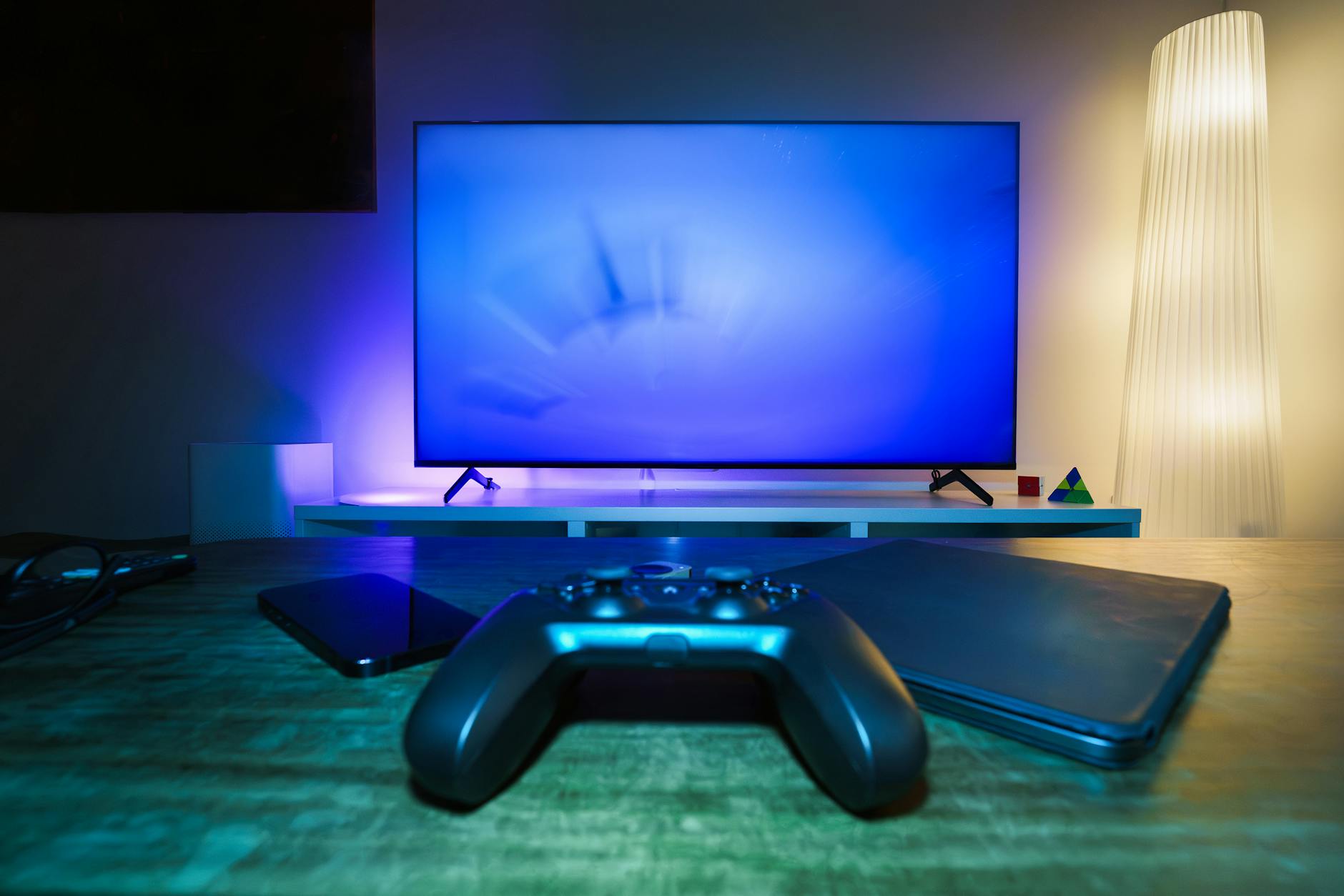
When you turn off your TV using the remote, it does not actually shut down. It goes into a low-power standby state, waiting to spring back to life instantly. This means that if the TV's operating system suffers a memory leak or a driver crash, a simple press of the remote's power button will not clear the error. We need to perform a deep power cycle, which is the tech equivalent of a long, dreamless sleep.
To do this, follow these steps precisely:
- Unplug the TV directly from the wall outlet. Do not just turn off the power strip.
- Locate the physical power button on the TV chassis itself (usually hidden underneath the front bezel, on the side, or on the back panel).
- Press and hold this physical power button for a full 60 seconds. Do not skimp on the time.
- Leave the TV unplugged for an additional five minutes.
Why do we hold the button while the TV is unplugged? Inside your TV are dozens of capacitors. Think of capacitors like tiny water balloons that store electrical pressure. Even when you unplug the power cord, these capacitors hold onto their charge to keep the TV's volatile memory alive. Holding the physical power button forces the system to drain every last drop of stored electricity, completely wiping the temporary memory and forcing the internal microcontrollers to boot up from scratch when you plug it back in.
The HDMI Handshake and Cable Chaos
If your TV powers on, shows its logo, and then immediately goes black when you switch to your game console or streaming box, you are likely dealing with an HDMI handshake issue.
HDMI is not just a one-way pipe carrying video from point A to point B. It is a highly complex, two-way conversation. Every time you turn on a device, it must exchange security keys with your TV using a protocol called HDCP (High-bandwidth Digital Content Protection). This protocol ensures you are not trying to pirate the content. If either device drops a packet of data during this digital handshake, the connection fails, and the TV displays a black screen to protect the copyrighted material.
To resolve this communication breakdown, we can perform a specific sequence:
- Turn off all connected devices and your TV.
- Disconnect all HDMI cables from both the TV and the source devices.
- Unplug the power cords of both the TV and the source devices (like your Apple TV, Roku, or PlayStation) from the wall.
- Wait two minutes, then plug the power cords back in.
- Reconnect the HDMI cables, ensuring they are seated firmly in the ports. Use a different port if one is available.
- Turn on the TV first, wait for it to boot fully, and then turn on the external device. This forces a clean, synchronized handshake.
Additionally, cheap or aging HDMI cables are notorious for degrading over time. Copper wires inside the cable can fray, or the connectors can oxidize. If you are trying to display 4K or HDR content through an older, high-speed cable that cannot handle the bandwidth, the signal will drop entirely, leaving you with a blank screen. Always test your system with a certified Ultra High Speed HDMI cable to rule this out.
Under the Hood: The Hardware Culprits
If software resets and cable swaps do not yield results, we must look at the hardware. Do not worry—you do not need a degree in electrical engineering to understand what is happening under the plastic shell of your TV. There are three main components that usually cause a black screen.
1. The T-Con Board (Timing Controller)
The T-Con board is the master choreographer of your television. It takes the raw video data from the main logic board and translates it into precise instructions for every individual pixel on your screen, telling them exactly when to open, close, and change color.
If the T-Con board fails or loses power, the pixels receive no instructions at all. They remain in their default, closed state, resulting in a completely black screen. However, because the main board is still running, you will still hear audio and the TV will respond to remote commands. A failing T-Con board can sometimes be resurrected by simply reseating its flat ribbon cables, which can wiggle loose over years of heat expansion and contraction.
2. The Power Supply Board
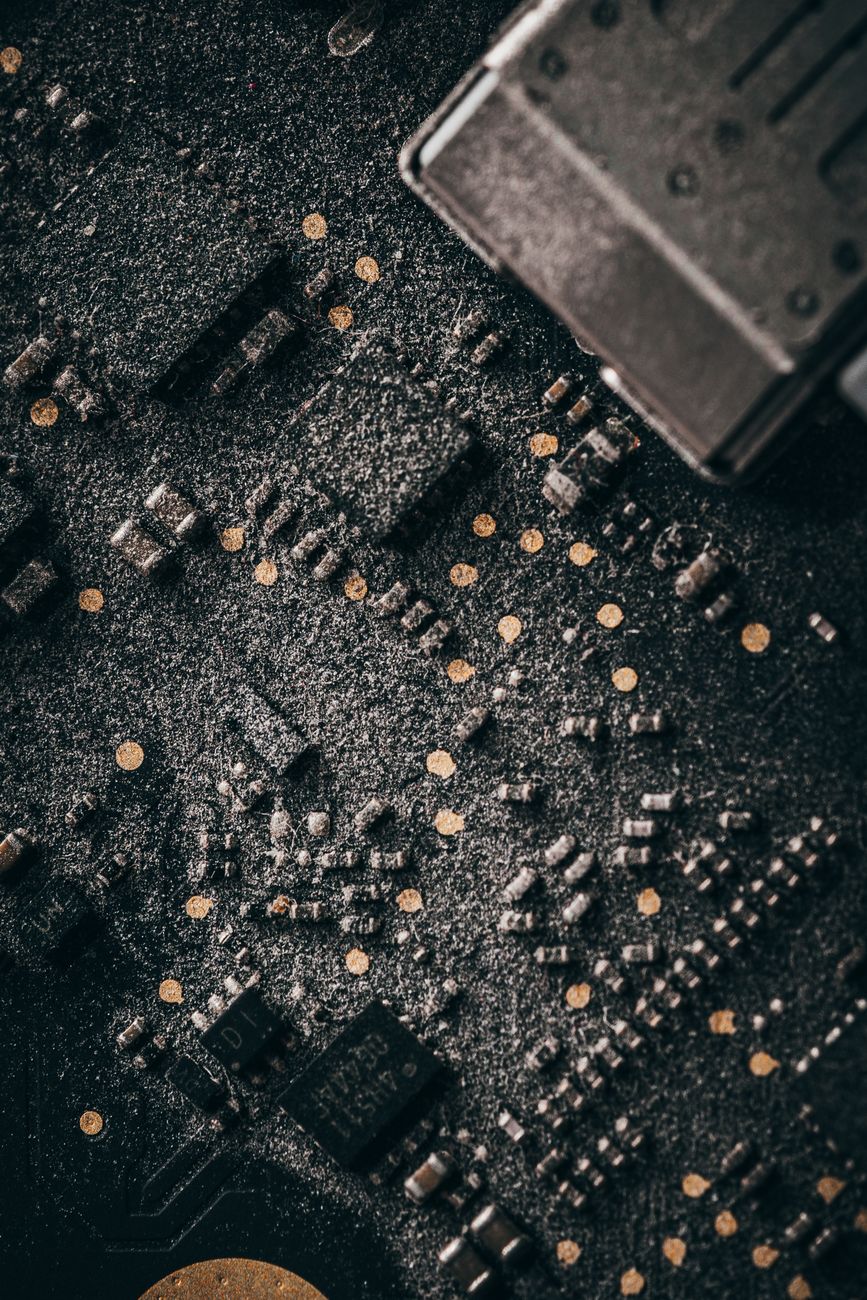
Your wall outlet delivers alternating current (AC), but your TV's delicate microchips need stable, low-voltage direct current (DC). The power supply board is responsible for this conversion. Over time, the electrolytic capacitors on this board are subjected to intense heat.
These capacitors look like tiny metal soda cans. When they fail, they often bulge at the top or leak a crusty residue. If the power supply cannot deliver a steady stream of voltage to the backlights or the main board, the TV will shut down its display to protect itself from a short circuit. Replacing a power supply board is surprisingly easy and inexpensive, often requiring nothing more than a screwdriver and a replacement board ordered online using your TV's exact model number.
3. Dead LED Backlights
As we discovered during the flashlight test, modern TVs rely on strips of light-emitting diodes (LEDs) to illuminate the screen. These LEDs are often wired in a series, much like old-fashioned holiday lights. If a single LED bulb burns out and breaks the circuit, the entire strip—or the entire backlight array—goes dark.
When this happens, the TV's safety sensors detect the drop in voltage and cut power to the backlight circuit entirely to prevent a fire hazard. While replacing individual LED strips requires a delicate teardown of the LCD panel, it is a very common repair that can save a high-end TV from the landfill.
The Step-by-Step Resurrection Playbook

Let's consolidate everything we have learned into a clear, actionable action plan. Follow these steps in order to systematically eliminate potential issues:
Step 1: The Soft Reset
Unplug your TV from the wall, wait 60 seconds while holding the physical power button, and plug it back in. Try a different wall outlet to rule out a tripped circuit breaker or a faulty surge protector.
Step 2: Isolate the Inputs
Disconnect every single device plugged into your TV. This includes soundbars, streaming sticks, gaming consoles, and cable boxes. If the screen comes back on and displays a "No Signal" message, you know the TV itself is fine, and the issue lies with one of your external devices or cables.
Step 3: The Blind Factory Reset
Sometimes, a corrupted firmware update can leave your TV stuck in a boot loop with a black screen. If your TV responds to the remote (indicated by the blinking status light), you can attempt a factory reset using key combinations on your remote. Look up the "blind factory reset" instructions for your specific TV brand. For example, some models allow you to hold the "Exit" button on the remote for 12 seconds to force a system wipe.
Step 4: Check for Firmware Recovery
If your TV has a USB port, you can often download the latest firmware from the manufacturer's website onto a FAT32-formatted USB drive. Plug the drive into the dark TV and turn it on. Many Smart TVs are programmed to automatically detect firmware files on a USB drive and initiate a recovery flash even if the screen is black.
Step 5: Inspect the Hardware
If you are comfortable doing so, lay the TV face down on a soft blanket, remove the back screws, and visually inspect the boards. Look for loose ribbon cables, burnt components, or bulging capacitors on the power supply board. If you spot a damaged board, you can swap it out yourself for a fraction of the cost of a new TV.
Frequently Asked Questions
Why does my TV have sound but no picture?
This is almost always caused by a failure of the backlight system or the T-Con board. The TV's main computer is working and processing the audio stream, but the light source behind the screen has failed, or the signal is not reaching the pixels. Try the flashlight test to confirm if the LCD panel is still displaying images.
Is it worth fixing a TV with a black screen of death?
Yes, absolutely. If the issue is a faulty HDMI cable, a corrupted system cache, or a bad power supply board, the fix can cost anywhere from $0 to $50. Even replacing LED backlights or a T-Con board is far cheaper than buying a new television. The only time a TV is truly beyond saving is if the physical LCD screen itself is cracked or damaged.
Can a software update cause a black screen?
Yes. If a Smart TV loses power or internet connectivity during a system update, the operating system files can become corrupted. This leaves the TV in a "bricked" state where it cannot load the user interface. Performing a firmware recovery via a USB drive or forcing a hard reset can often overwrite the corrupted files and restore the display.