


We have all been there. You sit down with your morning coffee, press the power button on your laptop, and expect the familiar glow of your operating system. Instead, you get nothing. Just a deep, empty, obsidian void staring back at you. Your heart drops. You press the power button again. Still, nothing.
Before you start looking up the prices of new laptops or cursing the tech gods, let’s take a deep breath. A black screen on startup is one of the most common laptop issues in the book. More importantly, it is highly diagnosable and often fixable right at your desk without spending a dime. Think of your laptop as a theater. Just because the stage lights are off doesn't mean the actors aren't backstage waiting for their cue. We just need to find out who is holding up the show.
In this guide, we are going to walk through this troubleshooting process like seasoned systems engineers, stripping away the mystery and giving you practical, step-by-step solutions.
The Diagnostic Phase: Decoupling Power from Display

Is it completely dead, or is it just playing hide-and-seek?
The first step in resolving a black screen is figuring out where the failure is actually happening. We need to distinguish between a no-power state and a no-display state. This is a crucial fork in the road because the troubleshooting paths for these two issues are completely different.
To do this, we need to look and listen for signs of life. Plug your laptop in and press the power button. Now, look closely:
- Are the LED lights on? Check the power indicator, the battery charging light, and the Caps Lock key.
- Can you hear the cooling fans? Put your ear close to the vents. Do you hear them spinning up?
- Do you hear the hard drive? If you have an older laptop with a mechanical hard drive, do you hear it spinning or clicking slightly?
- Does the keyboard backlight turn on?
If you see lights and hear fans, congratulations: your laptop's brain (the motherboard and CPU) is alive, but it is failing to talk to its face (the screen). If you hear absolutely nothing and see no lights, you are dealing with a power delivery issue, which usually points to a dead charger, a failed battery, or a blown charging port. For the rest of this guide, we will focus on the scenario where the laptop has signs of life, but the screen remains stubbornly dark.
The Hard Reset: Purging the Ghost in the Machine

Why static charge is your laptop's silent enemy
Laptops are incredibly sensitive to electrical fluctuations. Sometimes, a tiny bit of residual static electricity gets trapped in the capacitors on the motherboard. This stray charge can confuse the laptop's hardware controllers, causing them to freeze up during the boot-up sequence. To fix this, we need to perform a "hard reset" or "flea power drain." Think of this like shaking a dry-erase board clean so you can start fresh.
Here is how you perform a hard reset. The process varies slightly depending on whether your laptop has a removable battery or a sealed chassis.
For laptops with a removable battery:
- Shut down the laptop completely by holding the power button for 10 seconds.
- Disconnect the AC power adapter.
- Remove the battery from its compartment.
- Press and hold the power button down for a full 60 seconds. Do not skimp on the time. This drains every last drop of residual electricity from the motherboard's capacitors.
- Without putting the battery back in, plug the AC power adapter directly into the wall and the laptop.
- Turn the laptop on. If it boots successfully, shut it down, put the battery back in, and boot up normally.
For modern laptops with a sealed/non-removable battery:
- Disconnect all external peripherals (USB drives, mice, external monitors).
- Unplug the AC power adapter.
- Hold down the power button for 60 to 90 seconds. Many modern laptops have an internal controller that recognizes this long press as a hardware reset command and will temporarily disconnect the internal battery electronically.
- Plug the power adapter back in and try turning the machine on.
If this resolves your issue, your laptop was simply suffering from a temporary electrical hiccup. If not, let's move on to checking the screen itself.
The External Monitor Litmus Test: Isolating the Screen
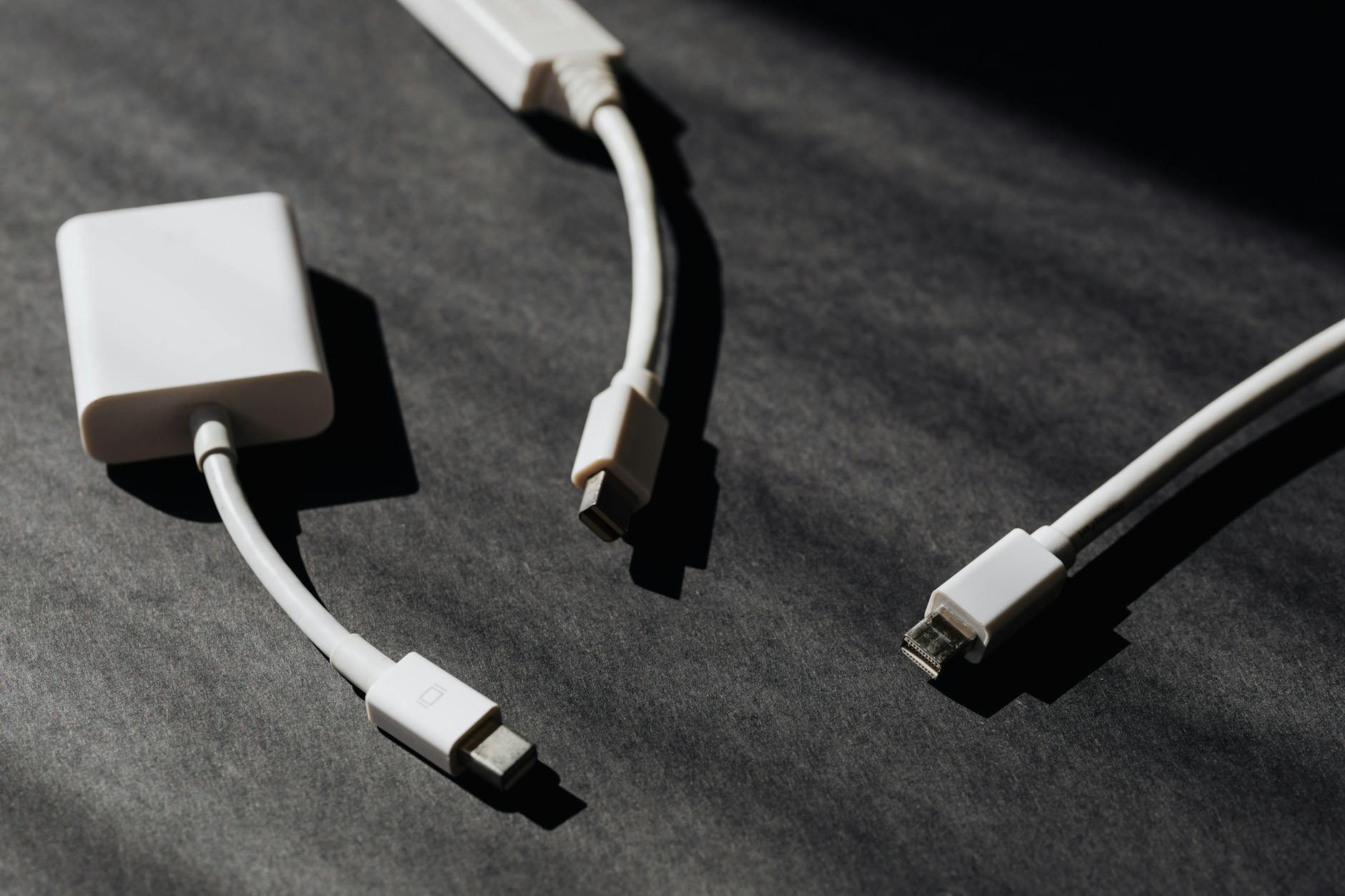
Checking the graphics card versus the LCD panel
Now we need to isolate the problem. Is the laptop's graphics chip (GPU) failing to generate an image, or is the laptop's built-in LCD screen broken? The easiest way to find out is by using an external monitor or a TV.
Grab an HDMI, DisplayPort, or USB-C cable and connect your laptop to an external screen. Turn both devices on. If the external monitor displays your desktop or the boot screen, your laptop's core hardware is working perfectly. The issue lies entirely within your laptop's display assembly.
If you get an image on the external monitor, try these steps:
- Press the display toggle key: Most laptops have a function key (usually F4, F8, or F10, marked with an icon of two screens) that switches display outputs. Press the Fn key along with this display toggle key to see if it forces the laptop screen to wake up.
- The Hinge Problem: Laptops are opened and closed thousands of times. Inside the hinge runs a thin, ribbon-like video cable (often called an eDP or LVDS cable) that connects the motherboard to the LCD panel. Over time, this cable can wear out, pinch, or wiggle loose from its connector. Try gently moving the laptop screen back and forth through its range of motion. If you see flickers of light or a brief image, your internal video cable is loose or damaged and needs physical repair.
- The Flashlight Test: Turn your laptop on in a dark room. Take a bright flashlight (like the one on your phone) and shine it directly at the laptop screen from a close angle. Look very closely. Can you see a faint outline of your desktop, icons, or the Windows logo? If you can, your screen's backlight has failed, but the LCD panel itself is still working. The display is essentially displaying an image in "invisible ink," and you just need a repair shop to replace the backlight inverter or the screen assembly.
But what if the external monitor is also completely black? That means the problem lies deeper inside the laptop's brain. Let's roll up our sleeves.
The Memory Lane: Troubleshooting RAM and CMOS

Why a speck of dust can blind your computer
If your laptop turns on but displays absolutely nothing on any screen, the system is failing its POST (Power-On Self-Test). Think of POST as a checklist your computer runs through every time you turn it on. It checks the CPU, the memory, and the graphics chip. If any of these fail to report for duty, the boot process halts immediately, leaving you with a black screen.
The most common culprit behind a POST failure is your system's RAM (Random Access Memory). Think of RAM as the CPU’s workbench. If the workbench is unstable, wobbly, or dirty, the CPU refuses to work.
If you are comfortable opening up the bottom panel of your laptop (usually just requiring a small Phillips screwdriver), you can easily reseat your RAM:
- Power off the laptop, unplug it, and remove the battery (if possible).
- Locate the RAM hatches or remove the bottom cover entirely.
- Locate the RAM sticks. They are held in place by two small metal clips on either side.
- Gently push these clips outward. The RAM stick will pop up at a 30-degree angle. Pull it out of the slot.
- Take a clean, soft pencil eraser and gently rub the gold contacts on the RAM stick. This removes any microscopic oxidation or dirt. Wipe away any eraser crumbs.
- Insert the RAM stick back into the slot at an angle and push down until the metal clips click back into place.
- If you have two sticks of RAM, try booting with only one stick installed at a time, switching between slots. This will help you identify if a single stick of RAM has gone bad or if a specific slot on the motherboard is faulty.
While you are inside the laptop, you might also see a small, coin-shaped battery wrapped in plastic or sitting in a socket on the motherboard. This is the CMOS battery. It powers the chip that stores your BIOS/UEFI settings. If your BIOS settings get corrupted, it can cause boot failures. Unplugging this CMOS battery for five minutes and plugging it back in resets your BIOS to factory defaults, which often coaxes a stubborn motherboard back to life.
Software Sabotage: Navigating Boot Failures and Driver Conflicts
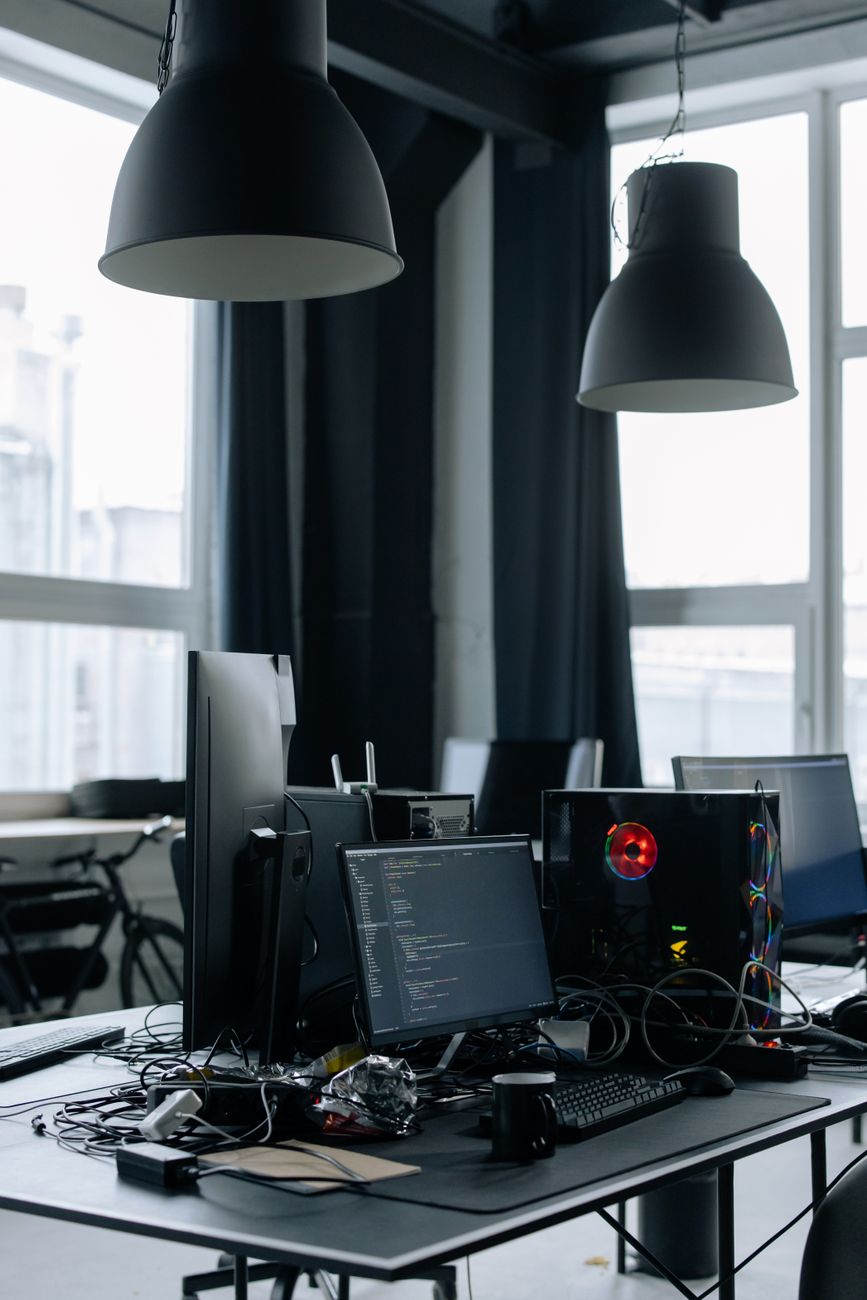
When updates go rogue
Sometimes, the black screen isn't a hardware failure at all. Instead, it is a software glitch. If you see your manufacturer's logo (Dell, HP, Lenovo, Asus, etc.) when you first turn on the computer, but the screen goes black right after that, your hardware is fine. The operating system is crashing or failing to load its graphics drivers.
This often happens after an automatic Windows update or a driver installation goes wrong. The graphics driver (the translator between the operating system and your graphics card) gets confused and sends a signal that your screen cannot read.
Here is how to bypass this software bottleneck:
The Graphics Driver Reset Shortcut:
If your computer is turned on and stuck on a black screen, press Windows Key + Ctrl + Shift + B simultaneously. This is a built-in Windows diagnostic shortcut that forces the graphics subsystem to restart. You will hear a brief beep, and your screen should flicker. If a frozen graphics driver was the issue, your display will pop back to life immediately.
Booting into Safe Mode:
If the shortcut doesn't work, we need to boot into Safe Mode. Safe Mode loads Windows with only the bare minimum drivers required to run—like driving your car in valet mode where it can't go over 15 miles per hour.
- Turn your laptop off completely.
- Press the power button. As soon as you see the manufacturer logo or any sign of life, press and hold the power button down until the laptop shuts off.
- Repeat this process three times. On the third or fourth attempt, Windows will recognize that it has failed to boot repeatedly and will automatically launch the Windows Recovery Environment (WinRE).
- You will see a blue screen with options. Navigate to: Troubleshoot > Advanced Options > Startup Settings > Restart.
- Upon restarting, you will see a list of options. Press the 4 or F4 key to boot into Safe Mode.
Once you are in Safe Mode, your screen should work because Windows is using a generic, ultra-stable display driver. From here, you can right-click the Start button, open Device Manager, expand the Display adapters section, right-click your graphics card, and select Uninstall device. Restart your computer normally, and Windows will reinstall a fresh, clean version of the driver, resolving the conflict.
Wrapping Up: When to Call in the Pros
If you have gone through this checklist—drained the static power, tested an external monitor, reseated your RAM, and tried booting into Safe Mode—and your screen is still a stubborn black void, you have successfully ruled out all the easy, DIY fixes. At this point, you are likely looking at a deeper hardware failure, such as a dead motherboard, a failed CPU, or a physically damaged graphics processing unit.
Don't beat yourself up. Hardware components have lifespans, and sometimes they simply reach the end of the road. But by performing these diagnostic steps yourself, you are armed with knowledge. When you walk into a repair shop, you won't be at the mercy of a technician trying to upsell you; you can confidently tell them exactly what you have already tested, saving you time, money, and hassle.
Frequently Asked Questions
Why does my laptop turn on, but the screen is black and the keyboard lights are blinking?
Those blinking keyboard lights are actually your laptop's way of speaking to you. Manufacturers program specific blink codes (or beep codes) to diagnose hardware issues when the screen cannot display an error message. For example, three long blinks followed by two short blinks might indicate a RAM error on an HP laptop. Search your laptop manufacturer's support site for "LED diagnostic codes" along with your laptop model to find out exactly what component is crying for help.
Can a dead battery cause a black screen even when the charger is plugged in?
Yes, absolutely. In some laptop designs, the power from the AC adapter must pass through the battery's charging circuitry before it reaches the motherboard. If the battery has suffered an internal short-circuit, it can act as a dam, blocking the power from reaching the rest of the system. If your laptop has a removable battery, try taking it out and running the laptop solely on the power cable to test this theory.
I spilled liquid on my laptop and now the screen is black. What should I do?
If the black screen occurred after a liquid spill, do not try to turn the laptop back on. Turn it off immediately, unplug it, and do not attempt any of the software or RAM troubleshooting steps mentioned above. Running electricity through a wet motherboard causes instant, permanent corrosion and short-circuits. Place the laptop upside down in a tent shape to let the liquid drain away from the keyboard, and take it to a professional repair technician immediately for an internal chemical cleaning.