

Laptop Audio Not Playing Through HDMI? Here’s the Fix
If your laptop display is working on your Smart TV but the audio is still stuck on your laptop speakers, you likely have a configuration mismatch. Follow this guide to force your Windows or Mac OS to route sound through your HDMI cable instantly.
Step 1: Check Your Windows Sound Output Settings
Often, the operating system defaults to internal speakers even when an HDMI cable is plugged in. Manually overriding this tells the OS to bypass the laptop’s hardware and send the audio stream through the HDMI handshake.
- Open Settings and navigate to System > Sound.
- Look for the Output dropdown menu.
- Select your Smart TV or HDMI Audio device from the list.
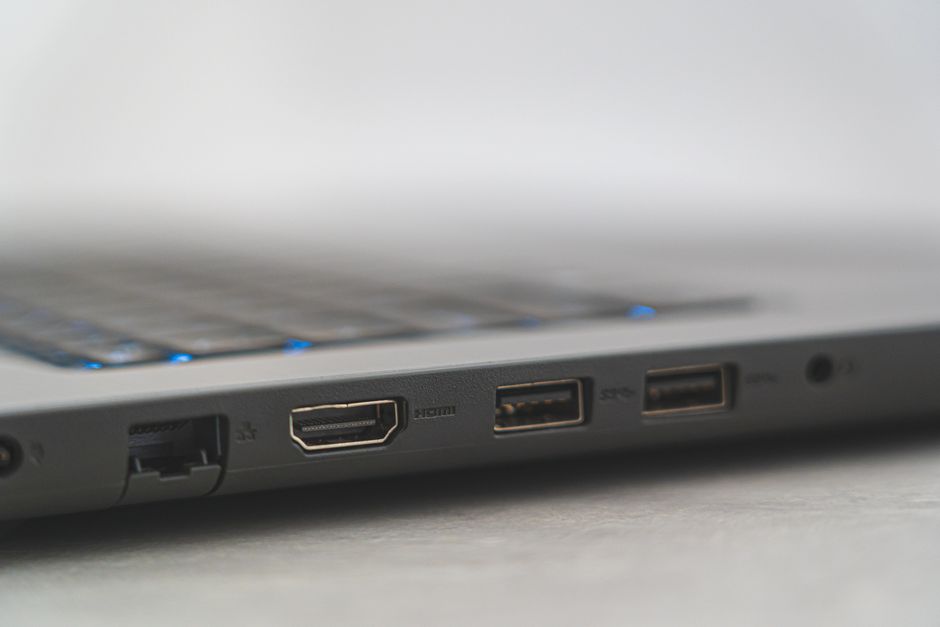
Step 2: Update Your Display Audio Drivers
If your TV doesn’t show up in the sound menu, your graphics driver might be outdated. Since audio is transmitted through the HDMI port via the graphics card, a faulty driver will block sound packets from reaching your TV.
- Right-click the Start button and select Device Manager.
- Expand Sound, video and game controllers and Display adapters.
- Right-click your graphics card (Intel, NVIDIA, or AMD) and select Update driver.
Step 3: Test Hardware and Physical Connections
Sometimes the issue isn't software-based; it’s a simple physical failure. HDMI cables handle both video and audio, but if a pin is damaged or the port is loose, the "handshake" required for audio might fail even if video persists.
- Try a different HDMI port on your Smart TV.
- Test the connection with a different HDMI cable to rule out a broken internal wire.
- Ensure the volume on both the laptop and the TV is unmuted, as volume settings are independent.
Frequently Asked Questions
Why does my video work but not the sound?
Video signals use different data lanes than audio signals. If the HDMI handshake fails to negotiate audio playback, the laptop defaults to its internal hardware while still sending the video feed.
Do I need to restart my computer after changing audio settings?
Usually, no. However, if the settings don't stick, a quick restart can force the OS to re-detect the external HDMI device and correctly map the audio drivers.
Can any HDMI cable carry audio?
Yes, all HDMI cables (version 1.0 and up) are capable of carrying audio. If your cable is very old or damaged, replacing it with a modern High-Speed HDMI cable often resolves communication issues.
Disclaimer: Technical troubleshooting involves altering system settings. Always ensure your data is backed up before modifying driver configurations. Proceed at your own risk.