

How to Fix Screen Flickering When Connecting Laptop to Smart TV
Screen flickering during an HDMI connection is often caused by resolution mismatches or faulty cable handshake signals. Follow this guide to sync your devices and restore a stable, crisp display.
Step 1: Inspect the Physical Connection
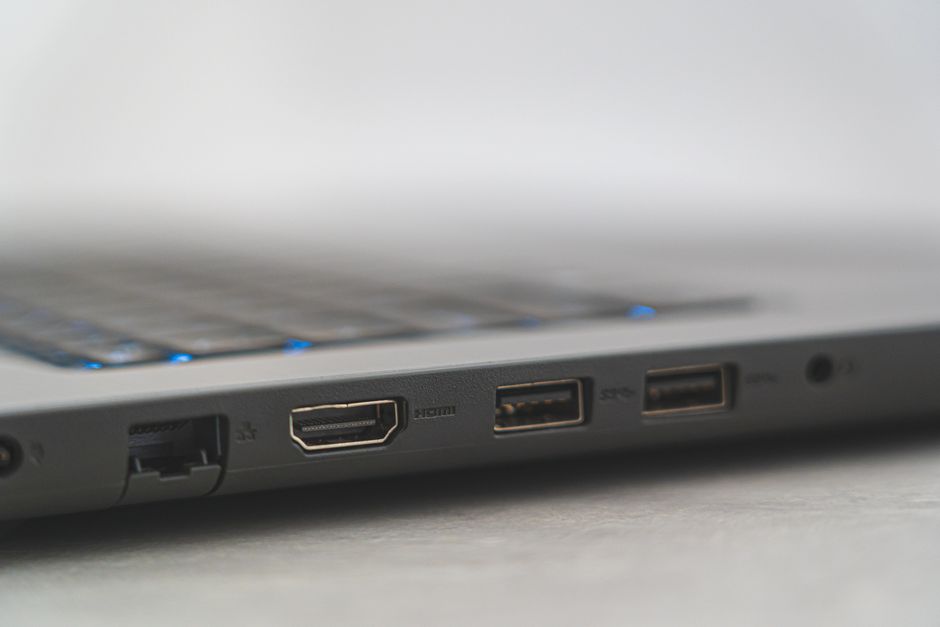
HDMI cables are prone to wear, especially near the connectors. A loose or damaged cable will result in intermittent signal loss, which manifests as a flickering screen.
- Unplug and Replug: Disconnect the HDMI cable from both the laptop and the TV, then firmly reinsert them until they click.
- Swap the Cable: If flickering continues, try a high-speed HDMI 2.0 or 2.1 cable to rule out physical damage.
Why this works: HDMI carries high-bandwidth data; a poor physical connection causes "packet loss" in the video stream, forcing the screen to blink as it tries to re-establish the handshake.
Step 2: Adjust Refresh Rate and Resolution
If your laptop is trying to output a refresh rate (like 144Hz) that your Smart TV cannot handle, the screen will struggle to sync, causing visible strobing or blackouts.
- Right-click your desktop and select Display settings.
- Scroll to Advanced display settings.
- Select your TV from the dropdown and change the Choose a refresh rate to 60Hz.
Why this works: Most standard Smart TVs operate at 60Hz. Forcing a laptop to push 120Hz or higher to a TV that doesn't support it creates a frequency mismatch that results in unstable signal processing.

Step 3: Update or Reinstall Graphics Drivers
Outdated drivers often fail to communicate correctly with external displays using modern HDMI standards, leading to compatibility artifacts.
- Right-click the Start button and select Device Manager.
- Expand Display adapters, right-click your graphics card, and choose Update driver.
- Alternatively, visit the manufacturer's website (NVIDIA, AMD, or Intel) to download the latest stable driver suite.
Why this works: Graphics drivers translate your OS instructions into visual data; an updated driver ensures the hardware correctly negotiates the HDMI signal protocols required by your TV.
Frequently Asked Questions
Could my TV's "Game Mode" cause flickering?
Yes. Some TVs adjust brightness and contrast dynamically in Game Mode, which can sometimes look like flickering. Try toggling Game Mode off to see if the stability improves.
Does the length of the HDMI cable matter?
Yes. If your cable is longer than 15 feet (5 meters) and isn't "Active" or high-quality, the signal strength degrades, leading to flickering or static.
Can background apps cause screen flickering?
Rarely, but high-resource applications can cause system stutters. Try closing background programs to ensure your GPU has enough overhead to handle the external display output.
Disclaimer: Technical troubleshooting involves adjusting hardware and software settings. Always save your work before changing display drivers or settings to prevent data loss. Proceed with caution when handling cables and ports to avoid physical damage to your devices.