

How to Stop Your Laptop from Disconnecting When Casting to Vizio Smart TV
Frequent disconnects when mirroring your laptop to a Vizio Smart TV are usually caused by network congestion or outdated display drivers. Follow this guide to stabilize your wireless connection and enjoy uninterrupted streaming.
Step 1: Synchronize Your Network Frequencies
Many Vizio TVs support both 2.4GHz and 5GHz Wi-Fi, but they struggle if your laptop is jumping between them. Ensure both devices are connected to the exact same SSID (network name) and, ideally, the 5GHz band for better bandwidth.
Why this works: Casting requires a constant stream of data. The 2.4GHz band is often crowded with other household devices, leading to packet loss and dropped connections.

Step 2: Update Your Graphics and Network Drivers
Outdated drivers can cause handshake failures between your laptop's wireless card and the TV's casting protocol. Go to Device Manager, right-click your Network Adapter and Graphics Card, and select "Update driver."
Why this works: Newer drivers improve compatibility with Miracast and Wi-Fi Direct protocols, which are the primary technologies used to mirror your screen to Vizio displays.
Step 3: Disable Windows Battery Saver Mode
Windows often throttles background processes—including your Wi-Fi radio's output—when it enters Battery Saver mode to save power. Plug your laptop into a power source and set your Power Plan to "High Performance."
Why this works: Wireless casting is a resource-intensive task. Preventing Windows from "optimizing" the Wi-Fi chip ensures the signal remains strong enough to maintain the connection.
Frequently Asked Questions
- Does using a wired connection help? Yes. If your laptop has an Ethernet port, connecting it to the router via cable will significantly reduce latency and disconnects.
- Is Vizio SmartCast the problem? Sometimes the TV’s internal firmware cache gets corrupted. Perform a soft power cycle by unplugging the TV for 60 seconds to clear temporary memory.
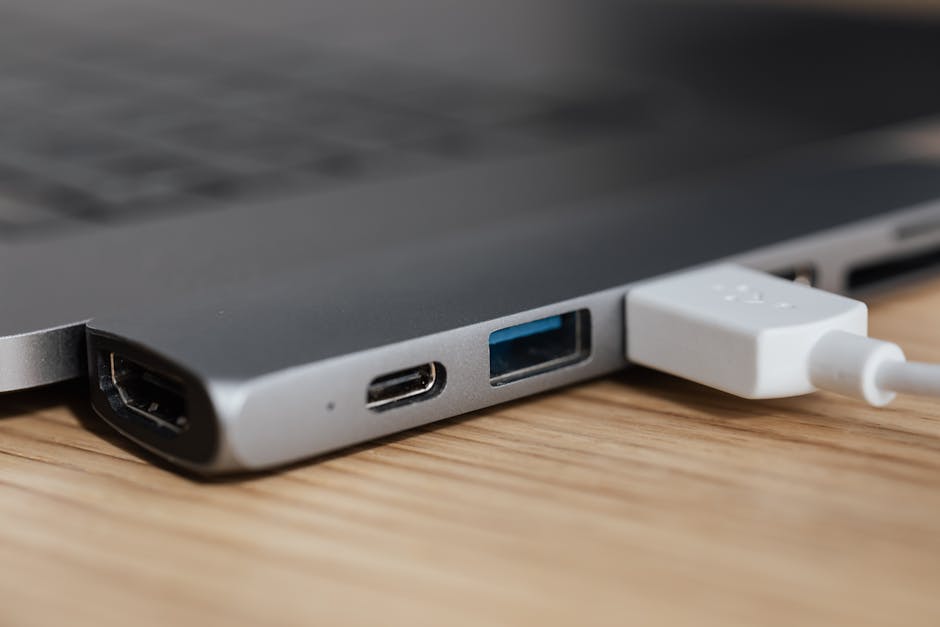
- Will an HDMI cable perform better? Absolutely. HDMI is a physical connection and will always be more reliable than wireless mirroring for extended use.
Disclaimer: Technical troubleshooting involves altering system settings. Always back up important data before modifying drivers or system configurations. Proceed at your own risk.