

Hey there, fellow Apple enthusiasts! If you have ever been in the middle of a lively FaceTime catch-up with a friend, only to have your iPhone 14 screen start flickering like a haunted house lightbulb, you know exactly how frustrating it is. You are trying to focus on a friendly face, but instead, your display is putting on a distracting, seizure-inducing strobe show.
This isn't just a minor annoyance; it can make your premium device feel completely broken. Fortunately, you don't need to panic or immediately rush to the nearest Apple Store. As a seasoned tech blogger who has dissected iOS display pipelines for years, I am here to tell you that this issue is incredibly common on the iPhone 14 series—including the Plus, Pro, and Pro Max. More importantly, it is highly fixable. Grab a cup of coffee, and let’s dive deep into why this happens and exactly how to fix it step-by-step.
Understanding the Root Causes of FaceTime Screen Flickering
Before we start pressing buttons, we need to understand the "why." Screen flickering on the iPhone 14 during FaceTime calls is rarely a random hardware failure. Instead, it is usually a complex clash between software rendering, hardware display technologies, and environmental sensors. Here are the primary culprits behind this phenomenon:
1. ProMotion and Variable Refresh Rate Mismatch
If you own an iPhone 14 Pro or Pro Max, your screen features Apple's ProMotion technology. This allows the display to dynamically scale its refresh rate from a battery-saving 10Hz all the way up to a buttery-smooth 120Hz. FaceTime video streams, however, typically run at a locked 30 frames per second (fps). When the iOS display driver tries to synchronize the incoming 30fps video stream with ProMotion’s fluctuating refresh rates—especially when you swipe to picture-in-picture mode or open the Control Center—the GPU can stumble. This synchronization lag manifests as a rapid flickering or gamma shifting.
2. PWM (Pulse Width Modulation) and Ambient Light Sensors
Like most modern OLED smartphones, the iPhone 14 uses Pulse Width Modulation (PWM) to control screen brightness. Instead of lowering the voltage to dim the screen, the display rapidly turns on and off at a frequency imperceptible to the naked eye. However, during a FaceTime call, the True Tone sensor and Ambient Light Sensor are constantly scanning your face and environment. If you are in a dim room, the conflict between FaceTime's high system resource usage and the sensor's constant brightness adjustments can cause the PWM frequency to fluctuate, resulting in a highly visible screen flicker.
3. Neural Engine Overload from Video Effects
FaceTime is no longer just a simple video feed. With iOS 16 and 17, your iPhone 14 uses its A15 or A16 Bionic chip to process real-time video effects like Portrait Mode (background blur), Studio Light, and automatic hand-gesture Reactions. These features heavily tax the Neural Engine and GPU. If your phone begins to run warm, thermal throttling kicks in, reducing the efficiency of the display driver and causing the screen to stutter or flicker under the heavy processing load.
Immediate Quick Fixes to Try First

Let's start with the low-hanging fruit. Often, a minor glitch in the volatile memory (RAM) or a temporary background process hang is the sole reason your display is acting up. Run through these quick diagnostic steps to see if we can resolve the issue immediately.
Force Restart Your iPhone 14
A standard restart simply puts the phone to sleep and wakes it up, which might not clear deep-seated system cache errors. A force restart, however, cuts power directly from the battery to the logic board, forcing a complete hardware and software initialization. Here is how to do it correctly on the iPhone 14:
- Press and quickly release the Volume Up button.
- Press and quickly release the Volume Down button.
- Press and hold the Side Power Button. Keep holding it down even when you see the "Slide to Power Off" slider.
- Only release the button when the screen goes black and the Apple Logo appears on the screen.
Isolate the Network Connection
It sounds strange, but a poor network connection can actually cause your screen to flicker during FaceTime. When bandwidth drops, FaceTime dynamically changes its video codec compression rates and resolution on the fly to prevent the call from dropping. The rapid switching between HD and highly compressed SD video feeds forces the display engine to constantly re-render the incoming frames, which can trigger a flickering effect. Try switching from Wi-Fi to Cellular Data, or vice versa, to see if the flickering subsides when the connection stabilizes.
Advanced Software Configurations and Settings Tweaks
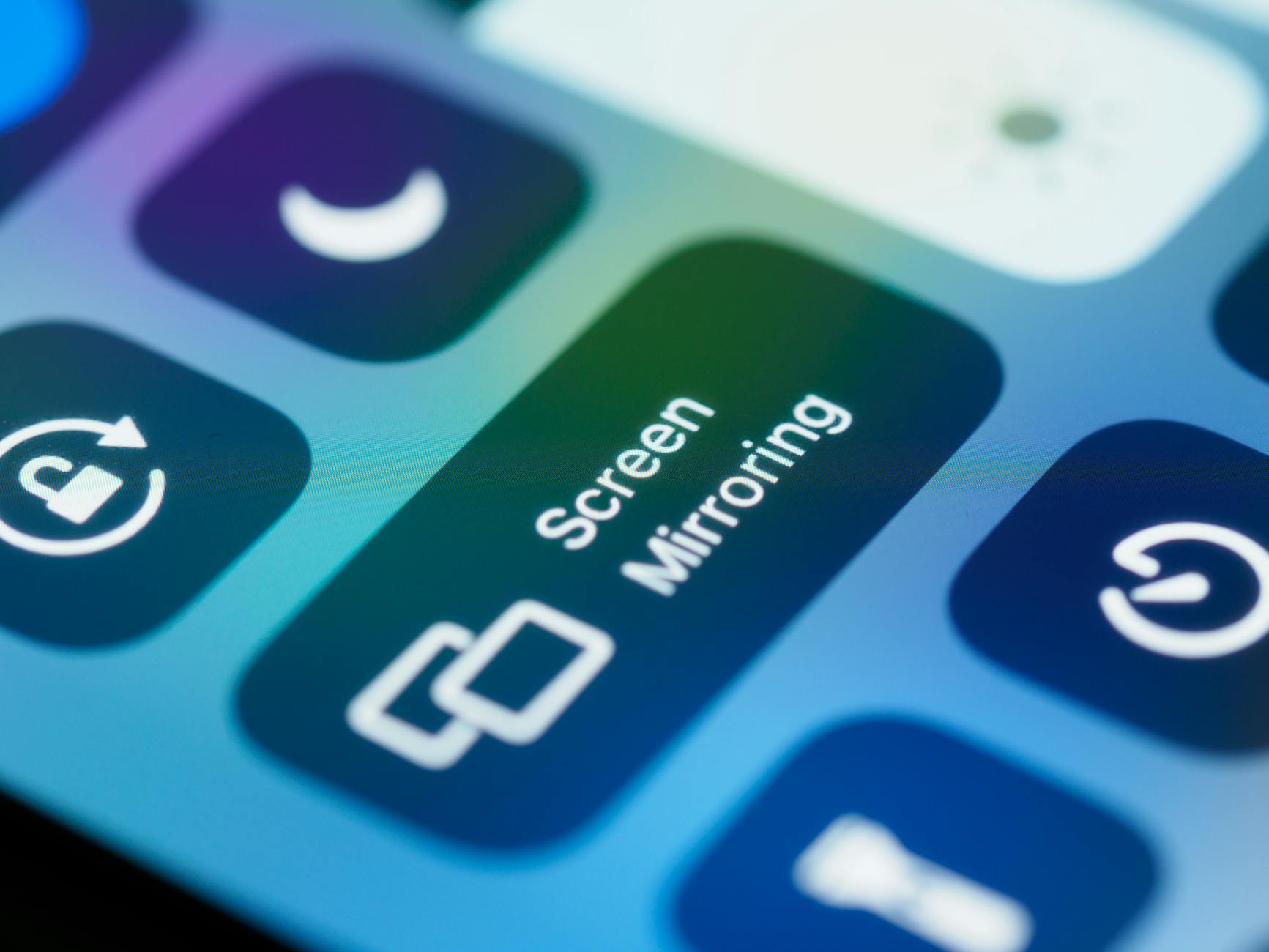
If the quick fixes didn't do the trick, it is time to adjust some of the advanced display and accessibility settings within iOS. These tweaks are designed to reduce the workload on your iPhone's GPU and bypass the sensor conflicts we discussed earlier.
Disable True Tone and Auto-Brightness
By turning off automatic environmental lighting adjustments, we can stop the ambient light sensor from constantly polling and altering the OLED screen's voltage during your calls.
- Go to Settings > Display & Brightness.
- Toggle off True Tone.
- Next, go to Settings > Accessibility > Display & Text Size.
- Scroll all the way to the bottom and toggle off Auto-Brightness.
- Manually set your brightness slider in the Control Center to around 50% and initiate a FaceTime call to test.
Limit Frame Rate to 60Hz (For iPhone 14 Pro / Pro Max)
By capping your ProMotion display to a maximum of 60Hz, you eliminate the dynamic refresh rate scaling that often clashes with FaceTime's 30fps video transmission.
- Open the Settings app.
- Navigate to Accessibility > Motion.
- Toggle on the switch next to Limit Frame Rate. This locks your display's maximum refresh rate to 60Hz, providing a stable baseline for video decoding.
Turn Off FaceTime Video Effects
Let's give your A-series processor a break by turning off resource-heavy background processing during your calls.
- While on an active FaceTime call, swipe down from the top-right corner of your screen to open the Control Center.
- Tap on the Effects tile in the upper-left corner.
- Despact/turn off Portrait Mode, Studio Light, and any active Reactions.
Deep System Restores and Updates
If you have tweaked your settings and the screen is still flickering, we are likely dealing with a deeper corruption in the iOS display driver stack or system cache. We need to employ more aggressive software restoration techniques.
Update to the Latest iOS Version
Apple is well aware of display calibration issues and frequently pushes out display driver updates in point-releases of iOS. To ensure you aren't fighting a bug that Apple has already solved, go to Settings > General > Software Update and install any pending updates. Make sure your phone is connected to Wi-Fi and has at least 50% battery before starting.
Reset All Settings
This is a fantastic troubleshooting step because it completely resets your system configuration files, network settings, display preferences, and accessibility layouts without deleting any of your personal data (like photos, messages, or apps).
- Go to Settings > General > Transfer or Reset iPhone.
- Tap Reset.
- Select Reset All Settings. You will be prompted to enter your passcode. Once confirmed, your phone will reboot and restore all settings to their factory defaults.
Perform a DFU Mode Restore
If all else fails on the software side, a Device Firmware Update (DFU) restore is the ultimate nuclear option. Unlike a standard recovery mode restore, a DFU restore completely bypasses the active bootloader, allowing you to rewrite every single line of code on your iPhone 14 from scratch.
Note: This will completely erase your device, so make sure you have a fresh backup of your data on iCloud or your computer before proceeding.
- Connect your iPhone 14 to your Mac or PC using a lightning-to-USB cable and open Finder or iTunes.
- Press and quickly release Volume Up, then press and quickly release Volume Down.
- Press and hold the Side Power Button until the screen goes black.
- As soon as the screen goes black, press and hold the Volume Down button while continuing to hold the Side Power Button for exactly 5 seconds.
- After 5 seconds, release the Side Power Button but keep holding the Volume Down button for another 10 seconds.
- If done correctly, the screen will remain completely black, but Finder/iTunes will alert you that it has detected an iPhone in recovery mode. Click Restore to download and install a fresh copy of iOS.
Hardware Troubles and Apple Support
If you have gone through a full DFU restore and the screen still flickers during FaceTime, we have officially ruled out software. You are dealing with a hardware defect.
The most common hardware cause is a loose or damaged display flex cable connector on the logic board, or a failing OLED digitizer panel. Because FaceTime calls heat up the phone, the physical thermal expansion inside the chassis can cause a slightly loose connector to lose proper contact, resulting in intermittent screen flickering.
Do not attempt to open your iPhone 14 yourself, as this will void your IP68 water resistance and any active warranties. Instead, book an appointment at your local Apple Store Genius Bar or an Apple Authorized Service Provider. If your device is still within its standard one-year warranty or covered by AppleCare+, this repair or device replacement should be completely free of charge.
Frequently Asked Questions
Why does this flickering only happen during FaceTime and not other apps?
FaceTime is incredibly resource-intensive. It simultaneously utilizes the front-facing TrueDepth camera, the microphone array, the cellular/Wi-Fi modem, real-time video encoding hardware, and GPU/Neural Engine processing for video effects. This unique combination of high thermal output, heavy GPU load, and dynamic video frame rates exposes minor display driver or voltage regulation flaws that standard apps (like Safari or Instagram) simply do not trigger.
Will updating to the latest iOS version fix the flicker permanently?
If the flickering on your iPhone 14 is caused by a software bug related to ProMotion refresh rate scaling or ambient light sensor conflicts, yes, an iOS update will often fix it. Apple regularly refines display calibration profiles in its software updates to address these specific real-world edge cases.
Could a third-party screen replacement cause this issue?
Absolutely. Non-genuine screen replacements often lack the precise micro-controllers required to communicate seamlessly with Apple's proprietary display drivers. They may struggle with dynamic refresh rates, lack True Tone compatibility, or fail to handle the specific PWM frequencies used by iOS, leading to severe flickering during high-demand tasks like FaceTime.