

It is a deeply unsettling experience. Your iPhone 14 vibrates in your hand, rings when a call comes in, and chirps when connected to a charger, yet the screen remains a completely unresponsive, pitch-black sheet of glass. This phenomenon is known in technical circles as the "Black Screen of Death" with active system feedback. It indicates a clear disconnect between the device's brain and its face.
The good news is that your phone is not dead. The processor is processing, the operating system is running, and the haptic engines are firing. The issue is localized to the display pipeline. This guide explores the mechanical, electrical, and software failures that cause this state and provides a systematic troubleshooting protocol to resolve it.
Understanding the "Black Screen of Death" Phenomenon

To understand why an iPhone 14 can be alive yet appear dead, think of a desktop computer setup. The computer tower can be powered on, running programs, and playing music through the speakers, even if the monitor is completely unplugged. On your iPhone 14, the A15 Bionic system-on-chip (SoC), the flash storage, and the cellular modems are working perfectly. However, the connection to the OLED display panel has been interrupted.
This interruption generally stems from one of three areas. First, a software kernel panic might have crashed the Display Driver IC (DDIC), which translates the CPU's commands into visual pixels. Second, a physical drop might have dislodged the internal display connector from the logic board. Third, the delicate organic light-emitting diode (OLED) matrix beneath the heavy Ceramic Shield glass may have suffered micro-fractures, rendering it unable to emit light even though the capacitive touch layer and glass remain fully intact.
The First Line of Defense: Force Restarting iOS

When iOS encounters a severe graphics driver error, the operating system continues to run in the background, but the display output freezes or goes black. A standard slide-to-power-off is impossible because the screen cannot register visual input. You must trigger a hardware-level interrupt to cut power to the CPU and force a clean bootloader initialization.
Apple built a specific physical button sequence into the iPhone 14 hardware to accomplish this. It bypasses the operating system entirely and communicates directly with the Power Management Unit (PMU). To perform a force restart, execute the following steps in rapid succession:
- Press and immediately release the Volume Up button.
- Press and immediately release the Volume Down button.
- Press and hold the Side button (power button).
- Keep holding the Side button for at least 15 to 20 seconds, ignoring any vibrations, until you see the white Apple logo on the screen.
Timing is critical. If you pause too long between the button presses, the logic board will register it as a volume adjustment rather than a reset command. If the Apple logo appears, your issue was a transient software crash, and the display controller has successfully reinitialized.
The Power Factor: Battery and Thermal Calibration
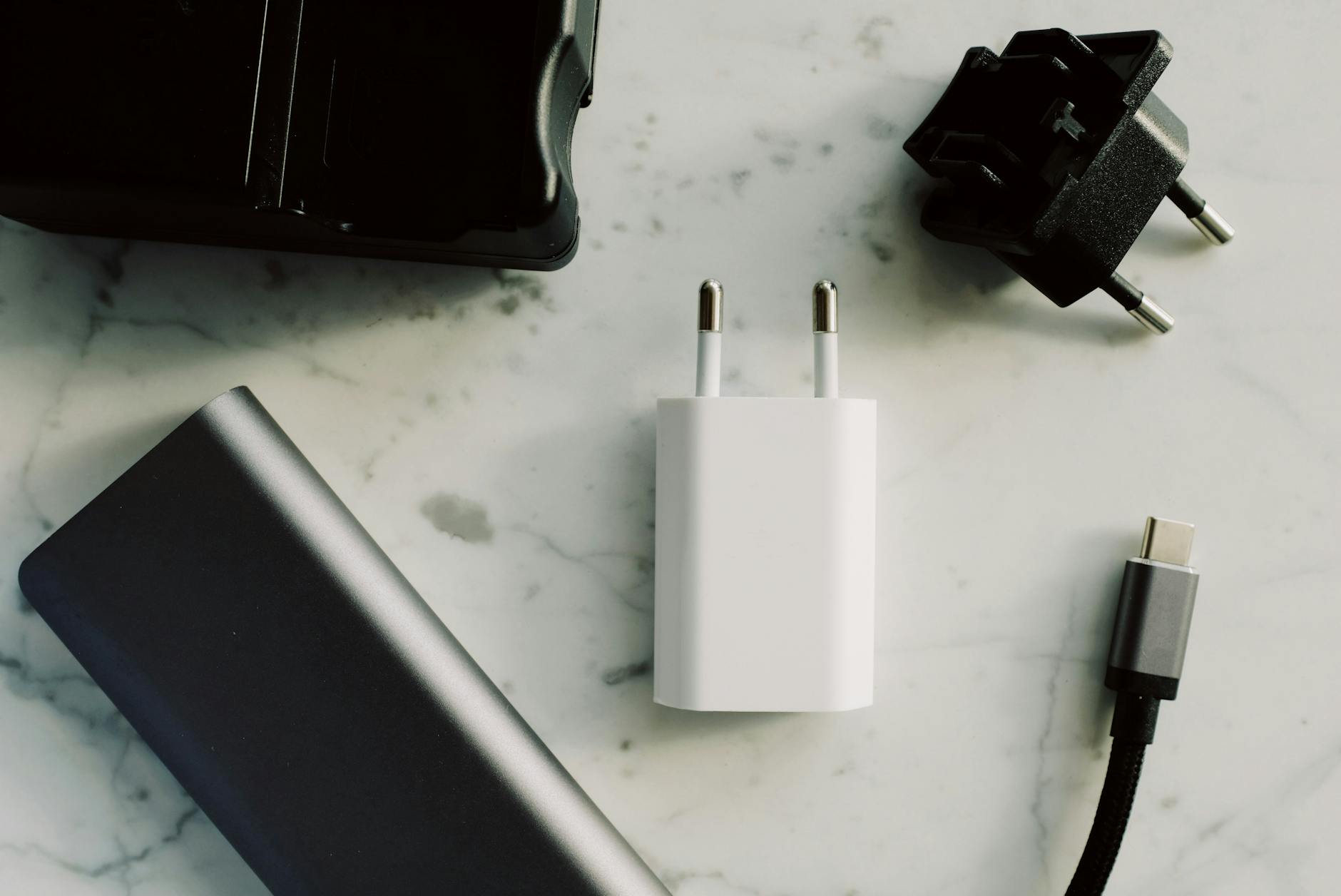
Sometimes, a deeply depleted battery can cause the iPhone 14 to enter a brownout state. In this condition, there is enough residual voltage to trigger the haptic engine or sound chips, but not enough current to power the high-voltage step-up converters that illuminate the OLED panel. This is highly common if the phone was left in extreme cold or hot temperatures.
To rule this out, connect your iPhone 14 to a known-working USB-PD (Power Delivery) fast charger rated at 20 watts or higher using a certified USB-C to Lightning cable. Do not use a slow 5W brick or a cheap wireless charging pad. Let the device charge undisturbed for at least 30 minutes.
If the device has overheated, the system will automatically disable the screen to protect the organic compounds in the OLED panel from thermal degradation, while keeping background processes active. If your phone feels hot to the touch, place it in a cool, shaded environment and let the internal temperatures normalize before attempting another force restart.
Hardware Realities: The Loose FPC Connector

Modern iPhones are incredibly resilient, but they are still subject to the laws of physics. Inside the iPhone 14, the display assembly connects to the logic board via a Flexible Printed Circuit (FPC) connector. These connectors snap together like tiny, microscopic Lego bricks and are secured by a metal shielding plate held down by tri-point screws.
A sharp impact—even a minor drop from a pocket onto a carpeted floor—can generate enough kinetic energy to slightly shift this connector. The glass will not crack, but the high-speed data pins responsible for carrying the display signal lose contact with the logic board. The pins for the haptic engine, speaker, and digitizer often remain connected, which is why the phone still makes sounds and vibrates when you touch it.
You can sometimes temporarily reseat this connector using a gentle physical diagnostic technique. Locate the area just to the right of the front-facing camera array, about a half-inch down from the top edge of the screen. Place your thumb on this area and apply firm, even, but gentle pressure. Next, apply similar pressure to the bottom-right quadrant of the screen. If you hear a microscopic click or see the screen flicker, the display connector was partially dislodged. If this resolves the issue, you should still plan to have the device inspected, as a future drop will likely disconnect it again.
Advanced Diagnostics: Computer Verification and DFU Mode

If physical pressure and forced restarts yield no results, you must determine whether the phone's operating system is fully operational. This requires connecting the iPhone 14 to a Mac running macOS Catalina or later, or a Windows PC running the latest version of iTunes.
Connect your iPhone to the computer using a high-quality data cable. Unlock your computer and open Finder or iTunes. Watch the computer screen closely. If you hear the iPhone chime and the computer prompts you to "Trust This Computer," the logic board is fully functional. The operating system is running, confirming that the issue is strictly isolated to the display hardware itself.
If the computer does not recognize the phone, you can attempt to force the device into DFU (Device Firmware Update) mode, which is a low-level diagnostic state. To enter DFU mode blindly:
- Connect the iPhone to your computer.
- Press and release Volume Up, then Volume Down.
- Press and hold the Side button for 10 seconds until the screen goes black (or stays black).
- While still holding the Side button, press and hold the Volume Down button for 5 seconds.
- Release the Side button but continue holding the Volume Down button for another 10 seconds.
If successful, your computer will display a message stating it has detected an iPhone in recovery mode. From here, you can attempt to reinstall iOS without erasing your data by clicking "Update."
When to Seek Professional Repair

If none of the steps above yield a working display, your iPhone 14 has suffered a hardware failure that requires component-level repair or replacement. There are three primary hardware culprits for this specific state:
First, the OLED panel itself may have suffered internal damage. The outer Ceramic Shield glass is incredibly tough and flexible, but the silicon and organic layers beneath it are brittle. A drop can fracture the display matrix internally, cutting off the voltage lines required to light up the pixels while leaving the outer glass flawless.
Second, the Chestnut IC (the display power management chip on the logic board) may have failed. This microchip is responsible for taking the battery's base voltage and boosting it to the high voltages required by the OLED panel. If this chip or its surrounding filters blow due to a minor short circuit, the screen will remain completely dark.
For these hardware issues, you will need to take the device to Apple or an authorized third-party repair shop. If the phone is under its original one-year warranty and shows no signs of physical drop damage or liquid ingress, Apple will typically repair or replace the display free of charge.
Frequently Asked Questions
Why does my iPhone 14 vibrate when plugged in if the screen is dead?
The charging system, haptic engine, and main logic board operate independently of the display panel. When you plug in the charger, the power management chip detects the current and tells the haptic engine to vibrate, confirming that the core computing components are functional even if the screen cannot display the charging icon.
Will a forced restart erase my photos or personal data?
No. A forced restart is a hardware-level power cut, similar to pulling the plug on a desktop computer. It does not alter, delete, or modify any user data stored on your iPhone's flash storage. It simply clears the active system RAM and reboots the operating system.
How can I back up my data if I cannot see the screen to enter my passcode?
If you have previously connected your iPhone 14 to a Mac or PC and selected "Trust This Computer," you can plug the phone into that specific computer to back up your data via Finder or iTunes without needing to enter the passcode on the phone. Additionally, if iCloud Backup is enabled, your phone will automatically back up your data to the cloud overnight when it is connected to Wi-Fi, plugged into power, and locked.