


It is the middle of an intense gaming session. The screen goes black, your console emits a series of sharp, frantic beeps, and you look down to see a pulsing, angry red light staring back at you. That blinking red light is the universal hardware cry for help. It is the digital equivalent of a runner collapsing at the side of a marathon track, gasping for air.
When your console flashes this warning, it is not just a minor glitch; it is a protective emergency shutdown triggered by internal thermal sensors. The system has reached its thermal junction maximum (TjMax)—the absolute limit of temperature its silicon can tolerate before permanent, irreversible physical damage occurs. Let's break down exactly why this happens, how heat behaves inside your system, and how you can save your hardware from an early grave.
Understanding the Thermodynamic Battle Inside Your Console

To understand why your console is overheating, we have to look at the sheer amount of work happening under the plastic shell. Modern consoles like the PlayStation 5 and Xbox Series X are essentially high-end, compact gaming PCs. They pack an 8-core AMD Zen 2 CPU and a powerful RDNA 2 GPU onto a single piece of silicon called an APU (Accelerated Processing Unit).
Think of this APU as a hyperactive kitchen stove compressed down to the size of a postage stamp. When you run a visually demanding game, billions of microscopic transistors flip on and off billions of times per second. This activity generates immense heat. If that heat stays on the silicon, the chip will literally melt its own internal connections within seconds.
To prevent this, console designers build a thermodynamic highway. Heat must travel from the APU, through a thermal interface material (like thermal paste or liquid metal), into a massive copper or aluminum heatsink, and finally get blown out of the chassis by a high-velocity fan. This process relies on conduction (heat moving through solid metal) and convection (heat carried away by moving air). If any single point on this highway gets blocked, heat pools at the source, the temperature spikes, and the system triggers the emergency blinking red light.
The Role of Thermal Interface Material (TIM)
The surface of your console's processor and the bottom of its copper heatsink look perfectly smooth to the naked eye. Under a microscope, however, they look like the Rocky Mountains. If you pressed them directly together, microscopic pockets of air would get trapped between them. Because air is a terrible conductor of heat, these pockets act like tiny thermal blankets, roasting the processor.
This is where Thermal Interface Material (TIM) comes in. Whether it is traditional silicone-based thermal paste or advanced liquid metal, the TIM acts as a microscopic bridge, filling every valley and ensuring seamless heat transfer. Over years of heat cycles, however, this material degrades, leading to thermal bottlenecks.
Deciphering the Red Light: What Your Console is Trying to Tell You
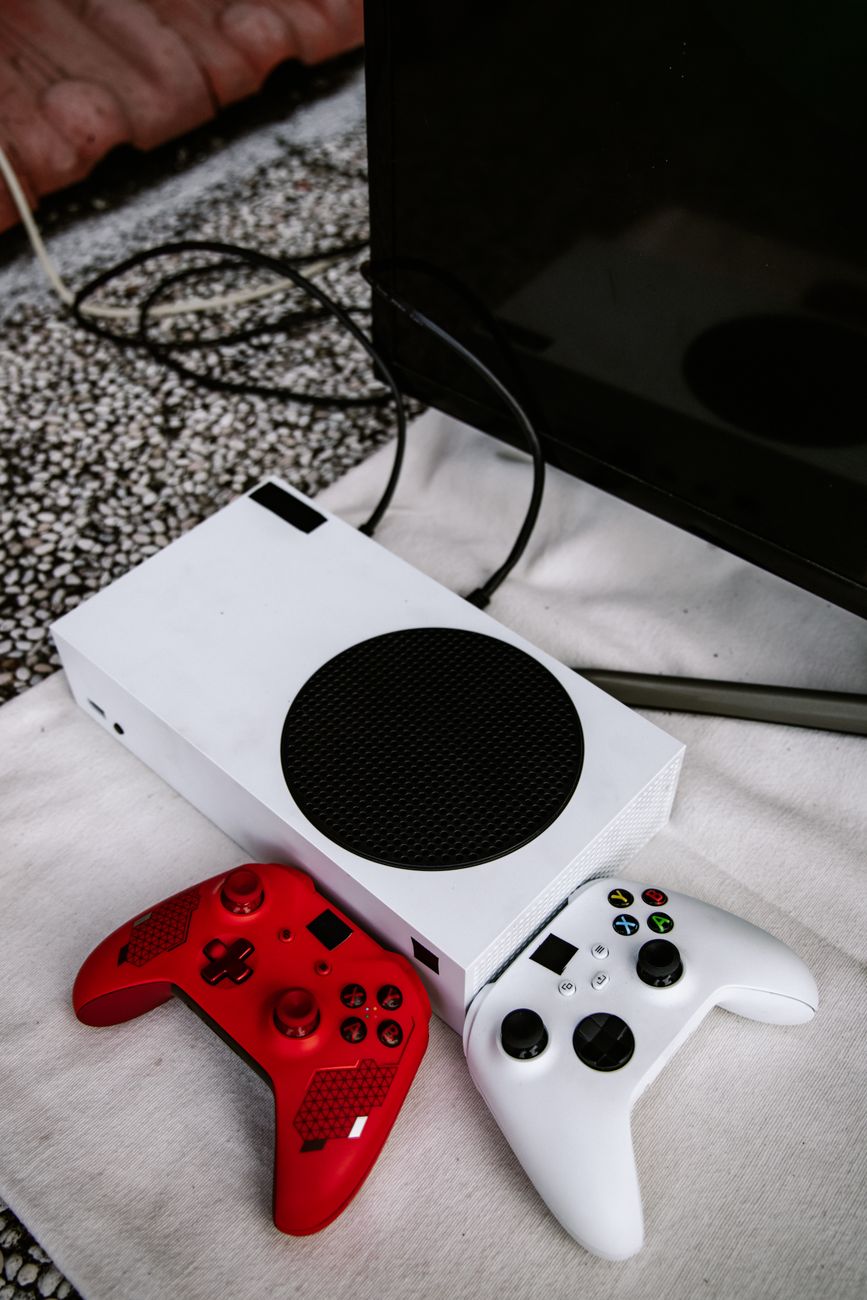
Different consoles communicate thermal distress in different ways. Understanding your specific system's language is crucial for a fast diagnosis.
The PlayStation Legacy: From YLOD to the Red Line
Sony has a long history of thermal indicator evolution. On the classic PlayStation 3, thermal failure was indicated by the infamous Yellow Light of Death (YLOD), which often transitioned into a blinking red light. This was frequently caused by solder joint fatigue under the RSX (Reality Synthesizer) chip, where repeated heating and cooling caused the lead-free solder to crack.
On the PlayStation 4, the system displays a solid or blinking red line across the chassis indicator light, accompanied by three distinct beeps. On the PlayStation 5, a blinking red light indicates an critical temperature fault. Because the PS5 uses liquid metal instead of traditional thermal paste, a dry spot on the APU can cause localized hot spots that trigger this sensor instantly, even if the rest of the console feels relatively cool.
The Xbox Approach: From Three Rings to Silent Shutdowns
Microsoft learned hard lessons from the Xbox 360's "Red Ring of Death" (RROD), which was largely a thermal design flaw related to ASIC packaging and insufficient cooling. Modern Xbox consoles (One, Series X, and Series S) are much smarter. They rarely show a blinking red light on the power button for simple overheating; instead, they will abruptly shut down and display a warning message on the screen upon reboot, stating: "Your console is designed to automatically shut down to protect it from insufficient ventilation." However, if there is a direct sensor failure or a power rail short caused by thermal stress, the power LED may flash briefly before the system dies.
The Nintendo Switch: Docked Distress
Even the portable Nintendo Switch is not immune. When docked, the Switch runs at higher clock speeds, generating more heat. If the internal fan fails or the vents are blocked, the console will slip into sleep mode, and the green LED on the dock may flash rapidly to signal a hardware exception error caused by thermal runaway.
The Root Causes: Dust, Dry Paste, and the "Pump-Out" Effect

Why does a console that ran perfectly for two years suddenly start flashing red? It usually comes down to three silent killers: dust accumulation, thermal paste degradation, and environmental suffocation.
Dust: The Thermal Insulator
Your console's fan acts like a vacuum cleaner, constantly pulling cool air from the room. Along with that air comes dust, pet dander, and carpet fibers. Over time, these particles stick to the leading edges of the heatsink fins.
This creates a physical barrier known as a "dust bunny felt." This felt blocks the airflow entirely. The fan can spin at maximum RPM (sounding like a jet engine), but the air cannot pass through the heatsink to carry the heat away. The heat gets trapped inside the aluminum block, radiating back down onto the APU.
The "Pump-Out" Effect and Thermal Dry-Out
If your console is clean but still blinks red, the culprit is likely under the hood. Traditional thermal paste consists of thermally conductive particles (like aluminum or silver oxide) suspended in a silicone oil matrix.
Every time your console heats up, the metal parts expand. When it cools down, they contract. This continuous mechanical flexing squeezes the thermal paste out of the center of the chip over time—a phenomenon engineers call the "pump-out" effect. What remains is a dry, chalky residue devoid of silicone oil. This dried paste loses its elasticity and cracks, creating air gaps that block heat transfer.
Boundary Layer and Environmental Suffocation
Sometimes the issue is not inside the console, but outside. Placing a console inside a closed wooden entertainment center creates a microclimate. The console expels hot air, which has nowhere to go. It pools inside the cabinet, raising the ambient temperature.
The console then sucks that same hot air back in to cool itself. This creates a thermal feedback loop. Within thirty minutes, the ambient intake temperature exceeds 40°C (104°F), making active cooling impossible and triggering the shutdown protocol.
The Triage Protocol: How to Revive an Overheating Console

If you are facing the blinking red light, do not panic. Follow this systematic engineering approach to diagnose and fix the issue safely.
Step 1: Immediate Thermal Triage
First, cut the power. Do not try to finish your level or save your game. Unplug the power cable from the wall immediately. This stops the flow of current and prevents further electromigration (the permanent damage to silicon pathways caused by high current at high temperatures). Let the console sit turned off for at least 30 to 60 minutes to allow the silicon and heatsink to normalize to room temperature.
Step 2: Clean the Intakes Safely
Grab a can of compressed air and a flashlight. Examine the intake and exhaust vents. Crucial safety tip: Never spray compressed air directly into a console's vents while the fan is free to spin. The air stream can spin the fan faster than its rated RPM, turning the fan motor into a generator. This sends a reverse voltage spike back into the motherboard, frying the fan controller chip. Always use a non-conductive tool (like a plastic toothpick) to gently lock the fan blades in place through the vent before blowing out the dust.
Step 3: Reposition for Laminar Airflow
Move your console out of closed cabinets. It needs at least 4 to 6 inches of open space on all sides. Avoid placing it on carpets or rugs, which block bottom intakes and static-attract dust. Try to elevate the console slightly off the surface using small rubber feet to increase passive convection around the lower casing.
Step 4: Advanced Thermal Paste Replacement (For Tech-Savvy Gamers)
If cleaning the dust does not solve the blinking red light, you need to replace the thermal interface material. This involves opening the console, removing the heatsink clamp, cleaning the old dry paste with 99% isopropyl alcohol, and applying a high-quality carbon-based thermal paste (like Arctic MX-6 or Noctua NT-H2). For the PS5, this involves carefully spreading the existing liquid metal to eliminate dry spots on the copper APU shim, which requires extreme care to prevent shorting nearby surface-mount capacitors.
Debunking Myths: Do Aftermarket Cooling Fans Actually Work?
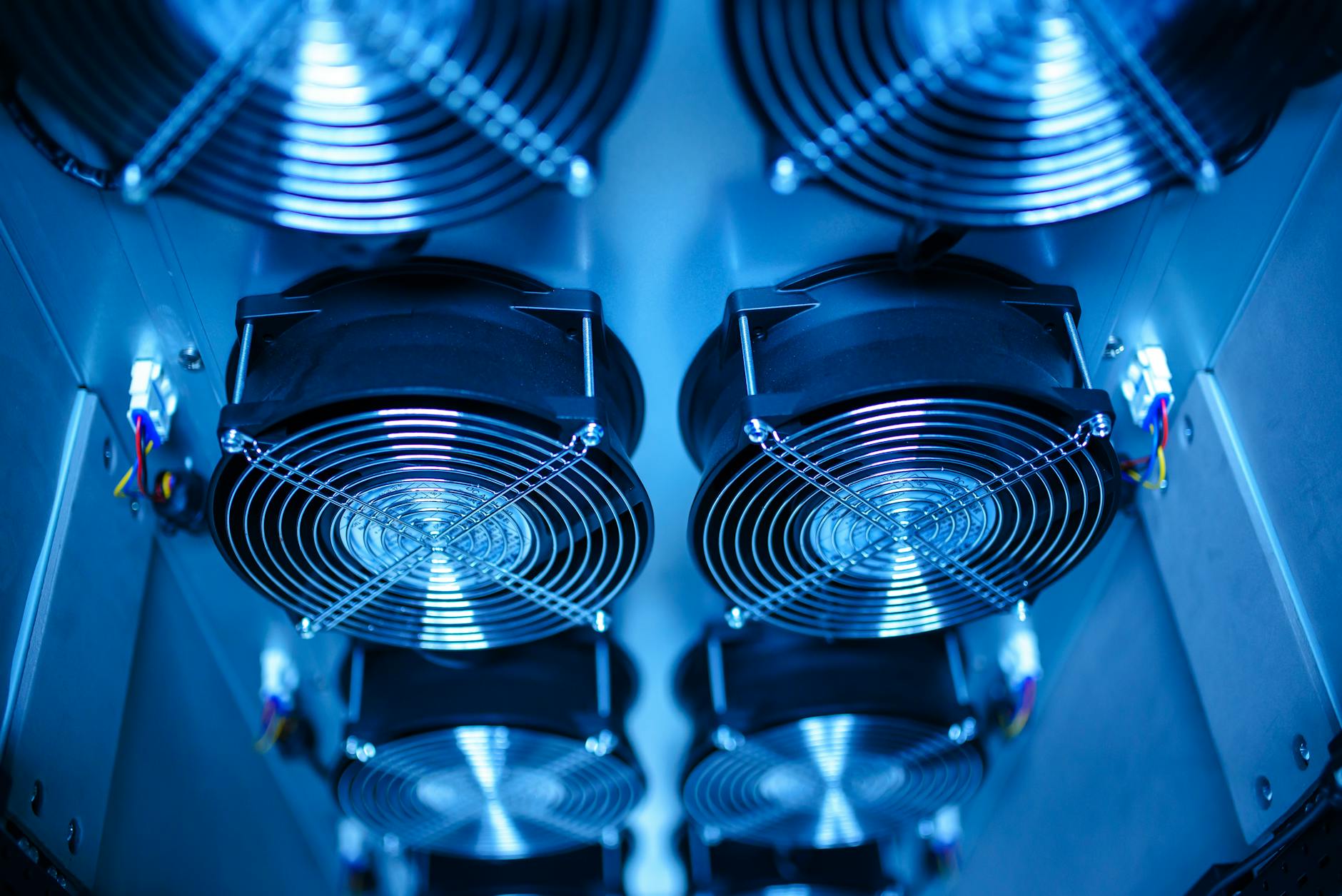
When searching for solutions to overheating, you will find hundreds of third-party USB cooling fans that clip onto the back of your console. As a general rule: avoid them.
Console thermal architectures are designed by world-class thermal engineers using computational fluid dynamics (CFD). They design the internal static pressure and airflow paths to cool specific components like voltage regulator modules (VRMs) and GDDR6 memory chips alongside the main APU.
Many aftermarket clip-on fans blow air in the wrong direction, or spin at speeds that disrupt this carefully balanced internal static pressure. They can stall the internal fan, create turbulent air pockets that trap heat over the RAM chips, and draw unnecessary power from the console’s USB rails, generating even more internal heat. Rely instead on maintaining a clean, dust-free stock system with plenty of room to breathe.
Frequently Asked Questions
Is a blinking red light a sign of a dead console?
Not necessarily. The blinking red light is a preventative warning system. It means the console shut down *before* critical damage occurred. If you address the thermal bottleneck (dust, airflow, or thermal paste) immediately, the console will usually boot up and run perfectly fine once cooled down.
How often should I clean dust out of my console?
For average households, a light surface cleaning of the vents every 3 to 6 months is ideal. If you have pets or live in a dusty environment, you should perform a deeper clean (removing the outer plastic shrouds to access the fan directly) once a year to prevent the accumulation of insulating dust layers on the heatsink.
Can I use regular WD-40 to quiet down a noisy, overheating fan?
Absolutely not. WD-40 is a solvent and water-displacer, not a long-term lubricant for high-speed bearings. It will degrade the plastic housing, attract more dust, and eventually cause the fan bearing to seize completely, leading to immediate overheating. If a fan bearing is failing (making grinding noises), the entire fan assembly should be replaced.