

How to Fix Google Photos Backup Stuck on "Syncing"
If your Android photos are failing to upload to Google Drive, you’re likely dealing with a background process conflict or a permission glitch. Follow this guide to clear the backlog and get your memories syncing to the cloud again.
Step 1: Verify Account and Sync Settings
Sometimes the Google Photos app loses its handshake with your Google account. By toggling the sync setting, you force the app to re-authenticate the connection with Google's servers.
- Open the Google Photos app.
- Tap your profile icon in the top right corner.
- Select Photos settings > Backup.
- Ensure the "Backup" toggle is switched to ON.
Why this works: This resets the active link between your local gallery and your cloud storage, effectively "waking up" the stalled process.
Step 2: Clear Cache and Storage Data
Temporary files can become corrupted, causing the sync engine to hang indefinitely. Clearing the cache removes these fragmented files without deleting your actual photos.
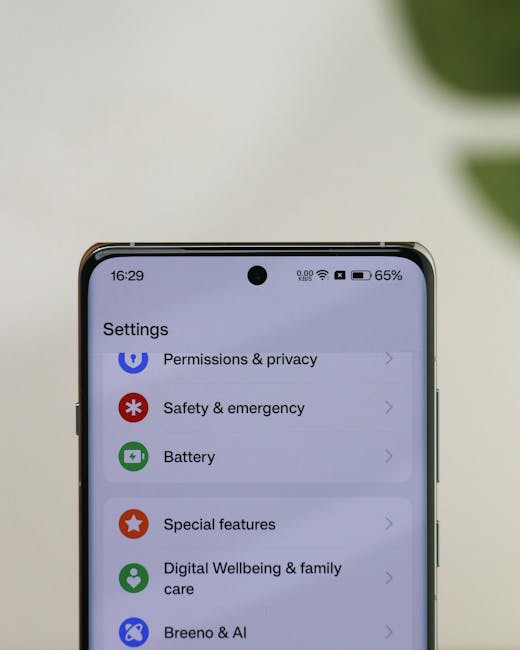
- Go to your phone’s Settings > Apps.
- Find and select Photos.
- Tap Storage > Clear Cache.
- If the issue persists, tap Clear Data (note: this will not delete photos from the cloud).
Why this works: Cache clearing forces the application to rebuild its index of files, often resolving the "stuck" status that prevents new uploads.
Step 3: Check Battery Optimization Settings
Android’s aggressive battery management often kills background tasks to save juice. If "Battery Saver" is active, Google Photos may be blocked from uploading high-resolution images.
- Go to Settings > Apps > Photos.
- Tap Battery and select Unrestricted.
Why this works: Setting the app to "Unrestricted" ensures that Android does not throttle the upload process, even when the screen is off or the battery is low.
Frequently Asked Questions
Will clearing data delete my photos?
No. Clearing the app's cache and data only resets the app’s temporary settings and indexes. Your photos remain safe in your phone’s internal storage and your Google Photos cloud account.
Do I need to be on Wi-Fi to sync?
By default, yes. If you want to use mobile data, go to Google Photos settings > Backup > Mobile data usage and toggle on "Back up videos/photos using mobile data."
How do I know if it's finished syncing?
Look at your profile icon in the top right of the Google Photos app. If you see a small checkmark, all items are uploaded. If you see an arrow or a "Backup complete" message, you are up to date.
Disclaimer: Perform these steps at your own risk. Always ensure you have a secondary backup of critical data on a computer or physical hard drive before modifying system app settings.