

Lenovo Laptop Stuck on Black Screen After BIOS Update: How to Fix It
A failed or interrupted BIOS update often leaves your Lenovo laptop trapped in a black screen loop, preventing it from booting into Windows. Follow these proven troubleshooting steps to reset your hardware and restore functionality to your system.
Step 1: Perform a Hard Power Reset
Static electricity can sometimes cause the motherboard to hang during the initialization process after a firmware change. By draining the residual power, you force the capacitors to discharge and the BIOS to clear its temporary state.
- Unplug the power adapter from your Lenovo laptop.
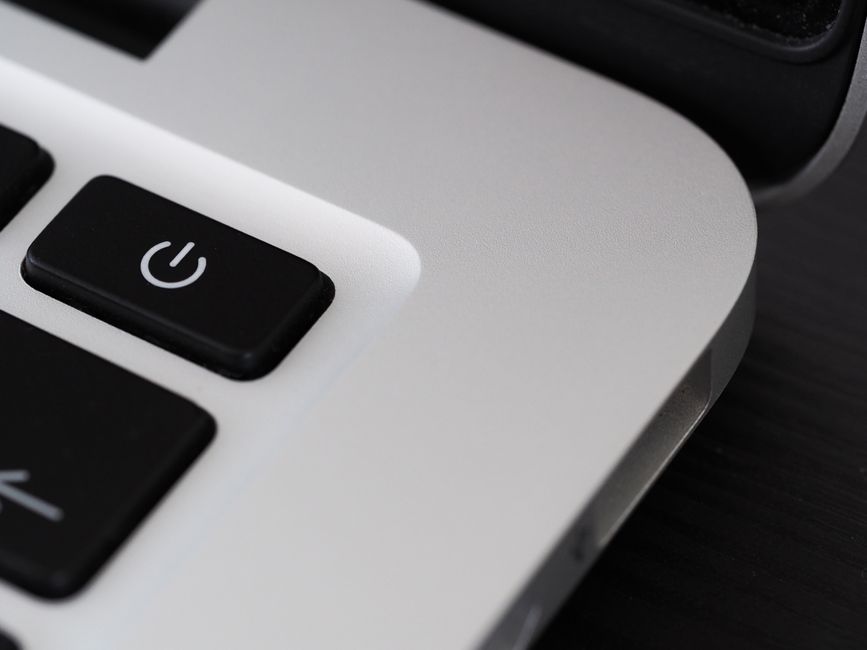
- Press and hold the power button for a full 60 seconds.
- Reconnect the power adapter and attempt to turn the laptop on normally.
Why this works: This clears the Embedded Controller (EC) memory, which often manages power-on sequences and can become "stuck" after a BIOS update failure.

Step 2: The Novo Button Recovery
Many Lenovo laptops (IdeaPad series) feature a recessed "Novo" button, typically found on the side or near the charging port. This is a dedicated hardware recovery trigger that bypasses standard boot sequences.
- With the laptop powered off, find the small pinhole labeled with a curved arrow icon.
- Use a paperclip to gently press and hold the button for two seconds.
- If the screen remains black, wait for the Novo Menu to appear, then select "System Recovery" or "BIOS Setup."
Why this works: This physically instructs the motherboard to boot into the manufacturer's emergency recovery environment, ignoring the corrupted OS bootloader.
Step 3: External Display Verification
Sometimes the BIOS update resets the default display output settings, causing the laptop to attempt outputting video to a non-existent external monitor. Connecting your laptop to a TV or external monitor via HDMI can reveal if the laptop is actually booting.
- Connect an HDMI cable from your laptop to an external monitor or television.
- Power on the laptop and wait for the Lenovo logo to appear on the external screen.
- If an image appears, navigate to your BIOS settings (F2 or Fn+F2) and check the "Display" or "Graphics" configuration.
Why this works: This determines if the issue is a "No POST" (Power-On Self-Test) failure or simply a display driver/output handshake issue.

Frequently Asked Questions
Can a BIOS update brick my Lenovo laptop permanently?
While rare, a BIOS update can corrupt the firmware chip. If the laptop shows no signs of life (no fan spin, no keyboard lights), the motherboard may require a professional chip flash or replacement.
Should I remove the battery?
If your laptop has a removable battery, taking it out for 5 minutes can help reset the hardware. For internal batteries, you must open the back panel to disconnect the battery cable safely.
What if the laptop still won't turn on after these steps?
If you cannot reach the BIOS screen, the update likely failed midway. Contact Lenovo support for a potential warranty motherboard replacement, as the firmware chip is likely corrupted beyond user repair.
Disclaimer: Proceed with caution. Opening your laptop chassis may void your warranty. Always ensure you are grounded to prevent ESD (Electrostatic Discharge) damage when handling internal components. Perform these steps at your own risk.