

Laptop Black Screen But Power Light Is On: The Ultimate Fix
A black screen with active power lights is a common, heart-sinking issue usually caused by a frozen graphics driver or a display signal failure. Follow this guide to diagnose the hardware handshake issue and get your display back in action.
Method 1: Perform a Hard Power Reset
Sometimes, your laptop's motherboard gets stuck in a loop of static charge, preventing the display from receiving a signal. A hard reset flushes this residual power.
Steps:
- Disconnect all external peripherals (USB drives, mice, external monitors).
- Unplug the power adapter.
- If your laptop has a removable battery, pop it out.
- Hold the power button down for 30–60 seconds.
- Reconnect the power cable (and battery) and turn it on.
Why this works: Draining the capacitors removes "ghost" charges that can force the power management system into an error state, effectively resetting the hardware configuration.

Method 2: Force Restart the Graphics Driver
If Windows is running but the screen isn't, the issue often lies with the display adapter failing to communicate with the OS. Windows has a built-in command to refresh this connection without a reboot.
Steps:
- While your laptop is on and the screen is black, press Windows Key + Ctrl + Shift + B simultaneously.
- You should hear a short beep, and the screen will flicker as the driver reloads.
Why this works: This key combination sends a direct signal to the graphics driver to restart, which often resolves conflicts caused by software updates or power-saving glitches.

Method 3: Test for an External Display Failure
It is possible that your laptop's screen backlight has failed while the computer itself is fully operational. Connecting to an external monitor helps rule out a faulty LCD panel.
Steps:
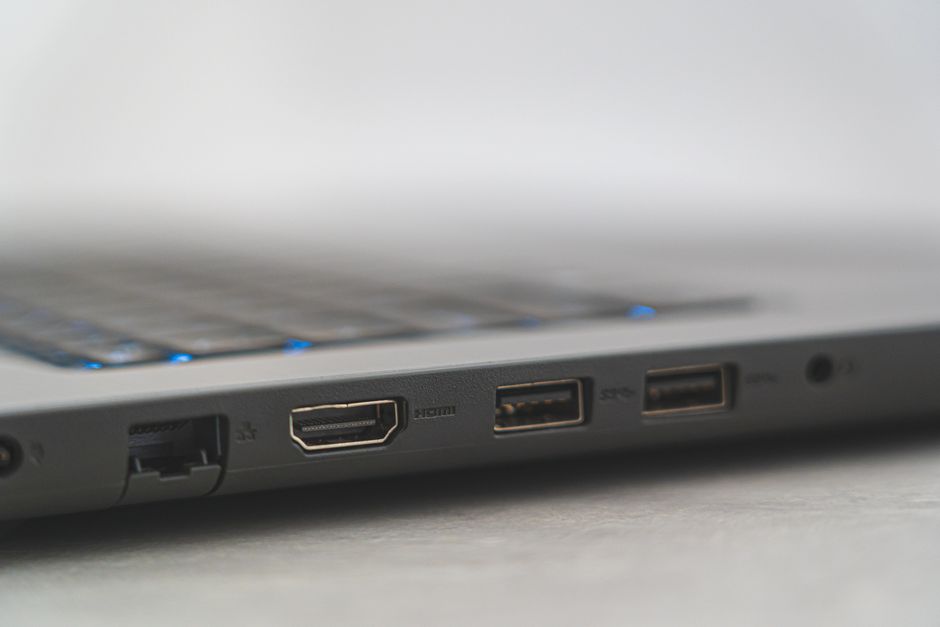
- Connect your laptop to a monitor or TV using an HDMI cable.
- Press Windows Key + P and hit "Enter" to toggle the display projection settings.
- If you see your desktop on the external monitor, your laptop's internal screen is likely suffering from a hardware backlight failure.
Why this works: By isolating the output signal, you can confirm whether the motherboard and OS are healthy, pointing the finger toward a specific hardware component like the display cable or panel.
Frequently Asked Questions
- Could this be a virus? It is unlikely. A black screen with power is almost always a driver, display, or memory (RAM) hardware issue.
- Does removing RAM help? Yes, if the hard reset fails, reseating the RAM sticks can often solve "black screen" issues caused by poor contact.
- What if nothing works? If you hear the fan spinning and the lights are on but no display shows, it may be a failed motherboard or GPU, requiring professional service.
Disclaimer: Perform these troubleshooting steps at your own risk. Opening your laptop chassis may void your manufacturer's warranty. Always disconnect the power source before touching internal components.