

How to Fix iPhone 12 Mini Won't Connect to iTunes During Restore
Struggling to get your iPhone 12 Mini recognized by iTunes during a restore is a frustrating roadblock that usually points to a handshake issue between the device and your computer. Follow this streamlined guide to troubleshoot your connection and get your device back to factory settings in minutes.
Step 1: Verify Hardware and USB Connectivity
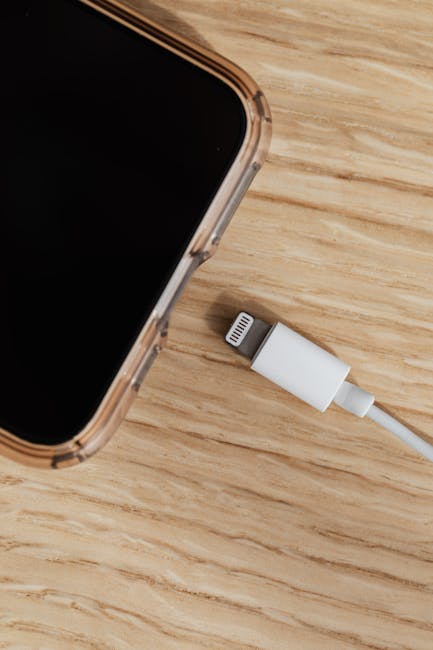
Often, the issue isn't the software, but a faulty data path. Cables that only support charging won't allow data transfers, and some USB ports on older desktops lack the power output required for a stable restore connection.
Action: Use an Apple-certified MFi cable and plug directly into the computer’s motherboard port (the back ports on a PC) rather than a USB hub or keyboard passthrough. This ensures a direct, high-speed data lane without power drops.
Step 2: Enter Recovery Mode Correctly
If the iPhone 12 Mini isn't showing up, your computer needs to be forced to communicate with the device while it’s in a "listening" state. Recovery Mode strips away the OS interface to allow iTunes to take command of the hardware.
Action: With the phone plugged into the computer, press and release Volume Up, press and release Volume Down, then press and hold the Side button until you see the Recovery Mode screen (the icon showing a cable pointing to a computer). Why this works: This bypasses the primary iOS bootloader, forcing the device into a low-level state that iTunes is designed to recognize immediately.

Step 3: Update Drivers or Reinstall iTunes
If you are on a Windows PC, the "Apple Mobile Device USB Driver" might be corrupted or outdated. Without the correct driver, the computer sees the phone as a generic device rather than an Apple product ready for restoration.
Action: Right-click the Start button and open Device Manager. Look for "Portable Devices" or "Universal Serial Bus controllers," right-click your iPhone, and select "Update Driver." If it doesn't appear, reinstall the latest version of iTunes directly from the Apple website to refresh the necessary background services. Why this works: Drivers act as the translator between your hardware and Windows; refreshing them clears out communication errors.
Frequently Asked Questions
Why does my computer show "USB Device Not Recognized"?
This usually indicates a physical connection failure. Clean the charging port on your iPhone 12 Mini with a soft, dry brush to remove pocket lint, as even a tiny obstruction can prevent a secure data handshake.
Do I need to turn off "Find My iPhone"?
Yes. If "Find My" is active, Activation Lock may prevent a successful restore. Try to disable it via iCloud.com if you cannot access the phone's settings menus.
How long should the restore process take?
A standard restore usually takes 15–30 minutes. If the process hangs for more than an hour, your internet connection may be timing out while downloading the firmware—check your Wi-Fi and try again.
Disclaimer: Performing a factory restore will erase all data on your iPhone 12 Mini. Ensure you have a current backup via iCloud or local storage before proceeding. We are not responsible for any data loss encountered during the troubleshooting process.