

How to Fix "No Signal" When Connecting Your Laptop to an LG Smart TV via HDMI
Staring at a "No Signal" screen after plugging in your laptop can be incredibly frustrating. This guide will help you quickly troubleshoot the handshake between your devices and get your display up and running.
1. Verify the Correct HDMI Input Source
Often, the TV is simply looking at the wrong HDMI port. LG TVs have multiple ports (HDMI 1, HDMI 2, etc.), and the television won't automatically switch if it doesn't detect a strong handshake immediately.
Steps: Grab your LG remote, press the Input or Source button, and manually toggle through the HDMI ports one by one, waiting three seconds on each to see if the signal appears.
Why this works: Modern TVs are "smart," but they sometimes fail to auto-detect a device if the laptop isn't outputting a signal yet. Forcing the port selection forces the TV to poll the HDMI connection again.

2. Force the Display Output on Windows
Your laptop might be set to "PC screen only," meaning it isn't sending any video data to the HDMI port at all. You need to manually tell Windows to enable the secondary display.
Steps: Keep the HDMI cable plugged in. On your keyboard, hold down the Windows Key and tap P. A menu will pop up on the right side of your screen; select Duplicate or Extend.
Why this works: This command overrides the default power-saving settings that prioritize the laptop's built-in monitor, effectively "waking up" the HDMI output.

3. Check Cable Integrity and Hardware Handshake
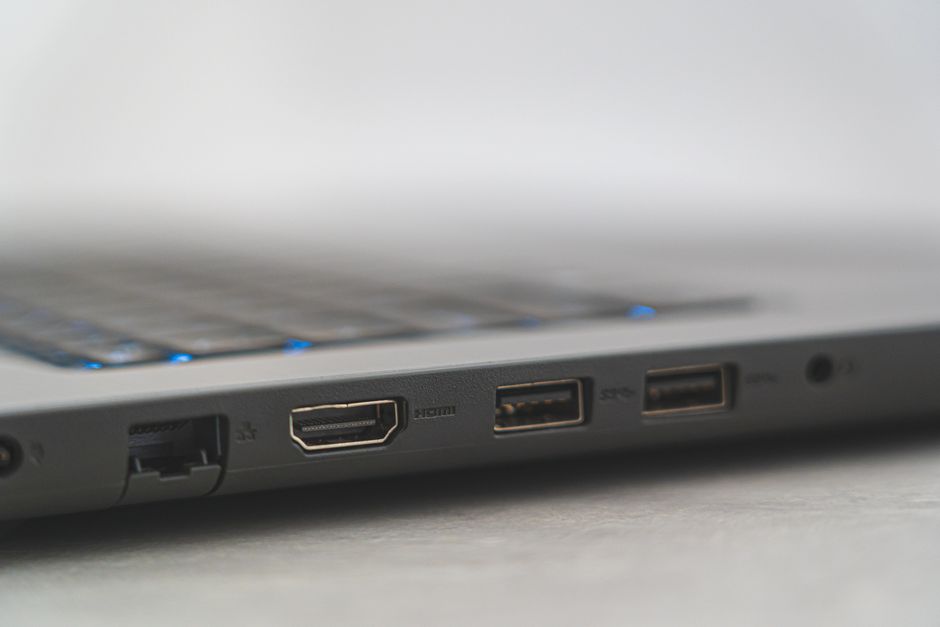
HDMI cables, especially older ones, can become faulty or loose. If the "No Signal" message persists, the connection between the physical pins might be interrupted.
Steps: Unplug the HDMI cable from both the laptop and the LG TV. Inspect the gold-plated pins for debris or bending. Firmly re-insert the cable until you feel a click. If you have another HDMI cable, swap it out to rule out a cable break.
Why this works: HDMI carries high-bandwidth data; a single damaged pin or a loose connection prevents the "handshake" (HDCP protocol) required for the laptop and TV to recognize each other.
Frequently Asked Questions
Why does the screen flicker on and off?
This is usually caused by a low-quality cable or an outdated graphics driver on your laptop. Try lowering the resolution in Windows Display Settings to see if the connection stabilizes.
Do I need to change my LG TV settings?
Generally, no. However, ensure "HDMI Ultra HD Deep Color" is toggled off in the TV's Picture settings if you are using an older cable, as it may be struggling with the bandwidth requirements.
Should I restart my devices?
Yes. A "power cycle" is highly effective. Turn off the TV, unplug it from the wall for 60 seconds, and restart your laptop while the HDMI cable is connected. This clears the temporary cache of the connection handshake.
Disclaimer: Always ensure your devices are powered off before inspecting ports for damage. I am not responsible for any hardware damage caused by improper handling of cables or ports. Proceed with caution.