

How to Backup Your Android Gallery to an External Hard Drive: A Step-by-Step Guide
Backing up your phone's photo library to an external hard drive is the best way to free up storage space while keeping your memories safe. Follow this guide to securely transfer your Android gallery files to a physical drive without losing data.
Step 1: Check Your Hardware Compatibility
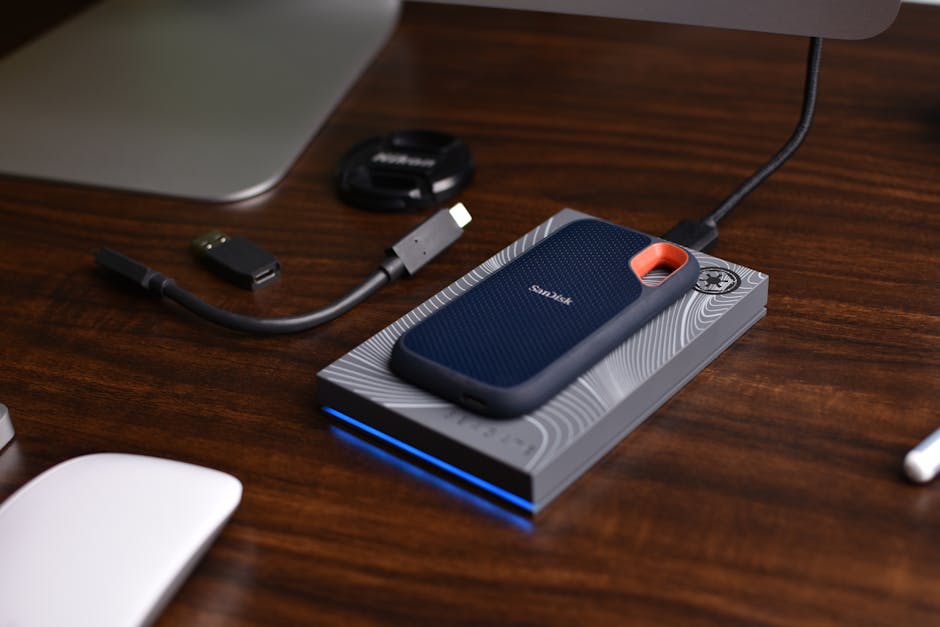
Before beginning, ensure your external hard drive is formatted in a file system that Android recognizes, such as exFAT or FAT32. You will also need a USB-OTG adapter, which bridges the gap between your phone’s USB-C port and the hard drive’s USB-A cable.
Why this works: Most Android devices act as a "USB Host," meaning they can power and communicate with external peripherals once the proper hardware handshake is initiated via the OTG adapter.
Step 2: Connect and Prepare the External Drive
Plug the USB-OTG adapter into your phone, then connect your hard drive. Once connected, your phone should display a notification indicating that a USB storage device has been detected.
Why this works: Modern Android operating systems automatically mount external storage, making the drive appear as a selectable volume within your file management applications.

Step 3: Transferring Files via File Manager
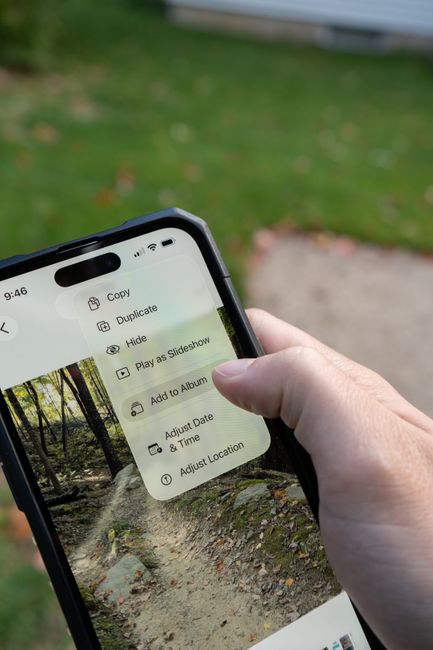
Open your "Files" app (or "My Files" on Samsung devices) and navigate to "Internal Storage" > "DCIM" > "Camera." Select your photos and videos, tap the menu (three dots), choose "Copy" or "Move," and navigate back to the "USB Storage" drive to paste your files.
Why this works: Using the native file manager ensures that file metadata, such as timestamps and high-resolution quality, is preserved during the transfer process without relying on cloud-based compression.
Frequently Asked Questions
Do I need an app to transfer these files?
Not necessarily. Most modern Android phones include a native "Files" app that handles external transfers perfectly. However, if your phone’s software is limited, apps like "Solid Explorer" offer a more robust interface.
Can I transfer files to an encrypted hard drive?
Android generally does not support hardware-level encryption formats like BitLocker. Ensure your drive is formatted as exFAT for the best compatibility before attempting the transfer.
Will this delete photos from my phone?
If you choose "Copy," your photos will remain on your phone. If you choose "Move," they will be deleted from the phone once the transfer to the hard drive is complete.
Disclaimer: Always ensure your device has at least 50% battery before performing large file transfers to prevent data corruption. I am not responsible for any data loss that may occur during the transfer process. Always verify your files on the destination drive before deleting them from your mobile device.